Discord bot
Create custom Discord Slash commands and emoji reactions.
Chat with in-game players directly from Discord, manage your servers, and more.
Slash commands
With slash commands you can execute actions on your dashboard without leaving Discord. You can customize the commands to fit your needs.
If you used GSA's task / delivery system already, then Slash commands system will feel familiar.
Command types
The examples below are just a few examples of what you can do with Slash commands. You can create your own commands and customize them to fit your needs.
Generic
As the name suggests, this command type can be used for generic commands.
What is a generic command? It's a command that doesn't have any specific target.
For example, /help, /servers or /onlineplayers.
Discord user (targets invoker)
This command type targets the invoker of the command, meaning the person that used the command on Discord.
For example, /claim, /kickme, /verify, /connect or /balance.
Player
Player commands target a specific player. This can be a Discord user or a player from your dashboard.
For example, /kick, /ban, /sendtokens, /dm or /mute.
These commands always require you to specify a player and can only be used by Additional admins.
Character
Character commands target a specific character from your dashboard.
For example, /levelup, /setname or /exp.
These commands always require you to specify a character and can only be used by Additional admins.
Game server
Game server commands target a specific game server, a cluster, or all game servers.
For example, /restart, /backup or /rcon.
These commands always require you to specify a game server and can only be used by Additional admins.
Create a command
You can create a new command or download commands from the marketplace and edit them to your needs.
Find inspiration or get started with Slash commands using the Discord Marketplace >
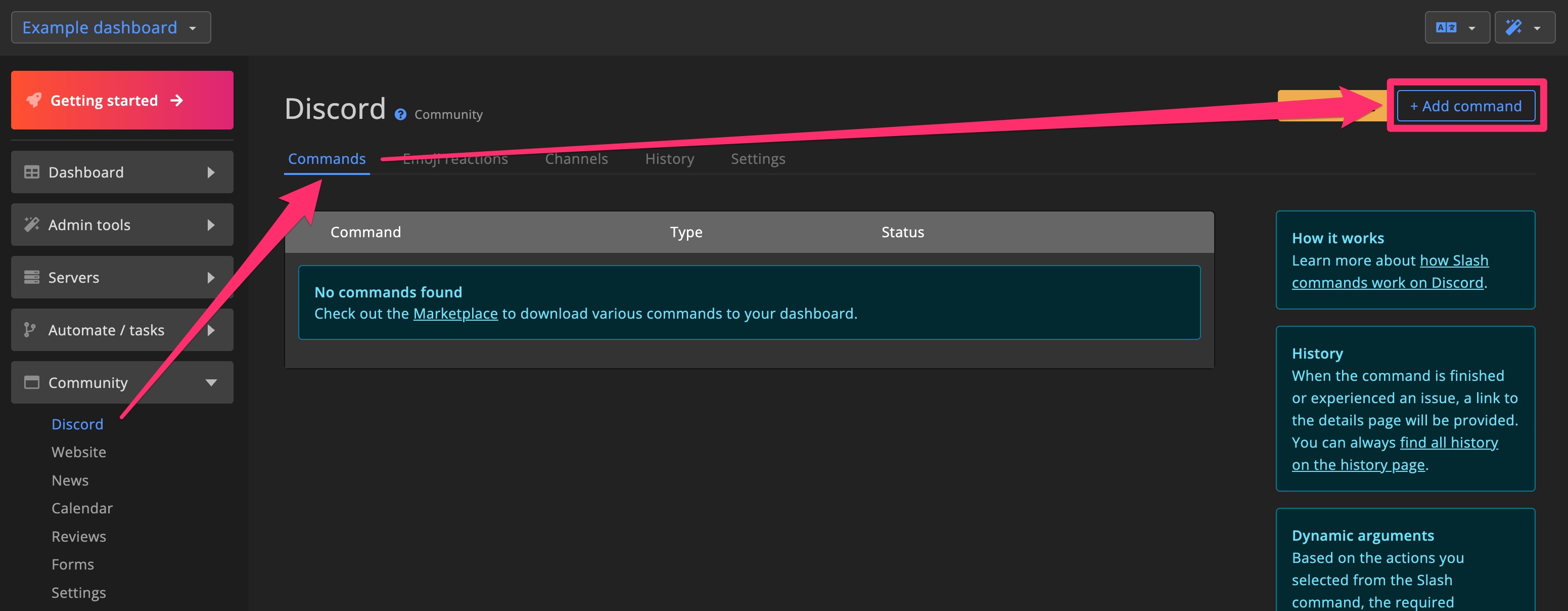
Click + Add command to create a new command.
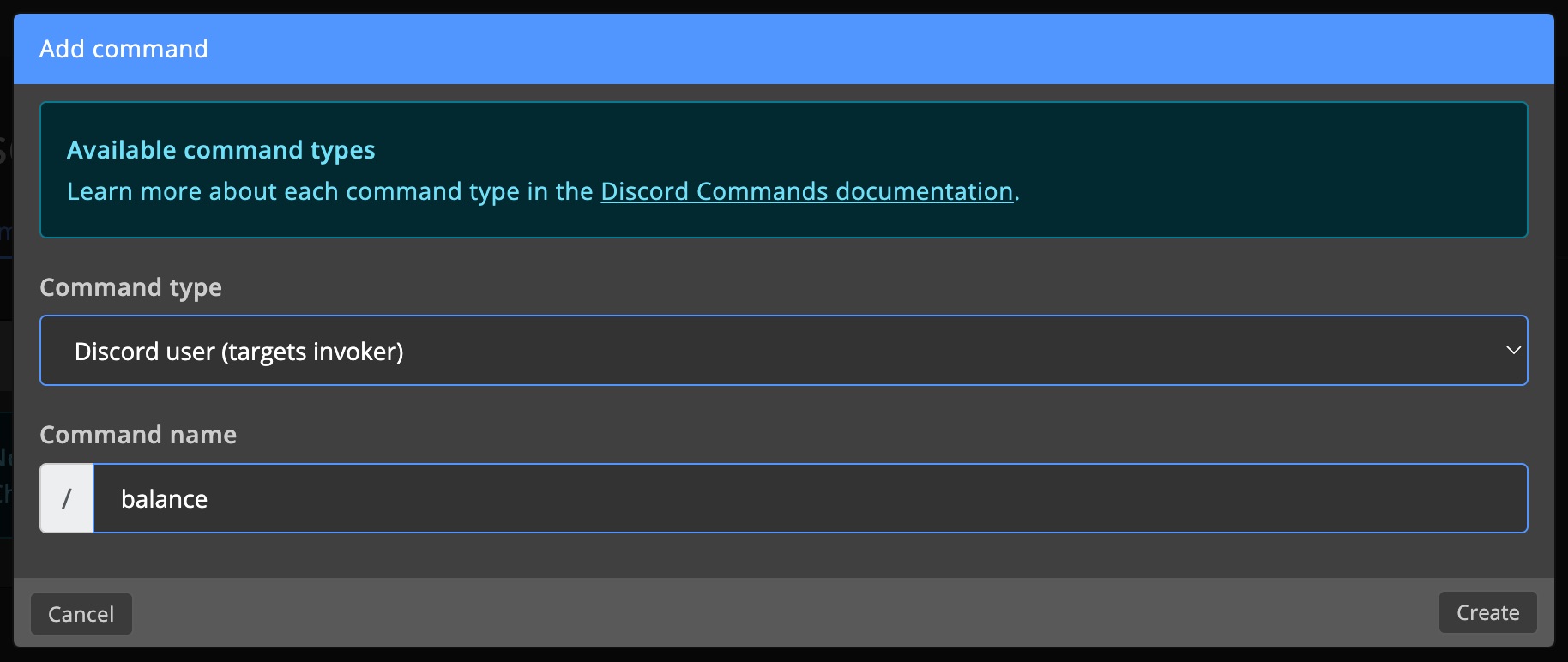
Select the command type and enter a name for your command.
Add actions to your command, enter a description, and enable the command.
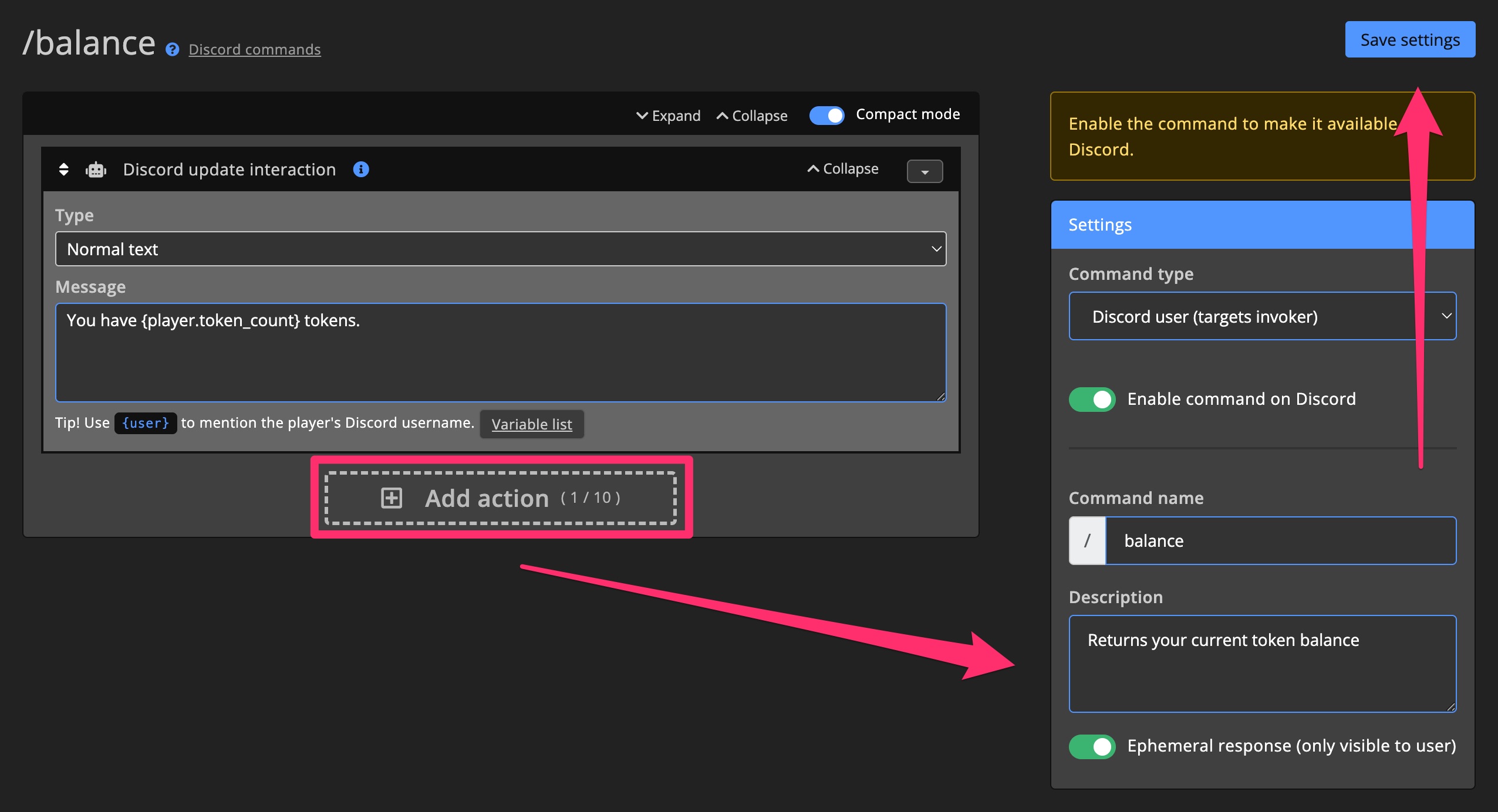
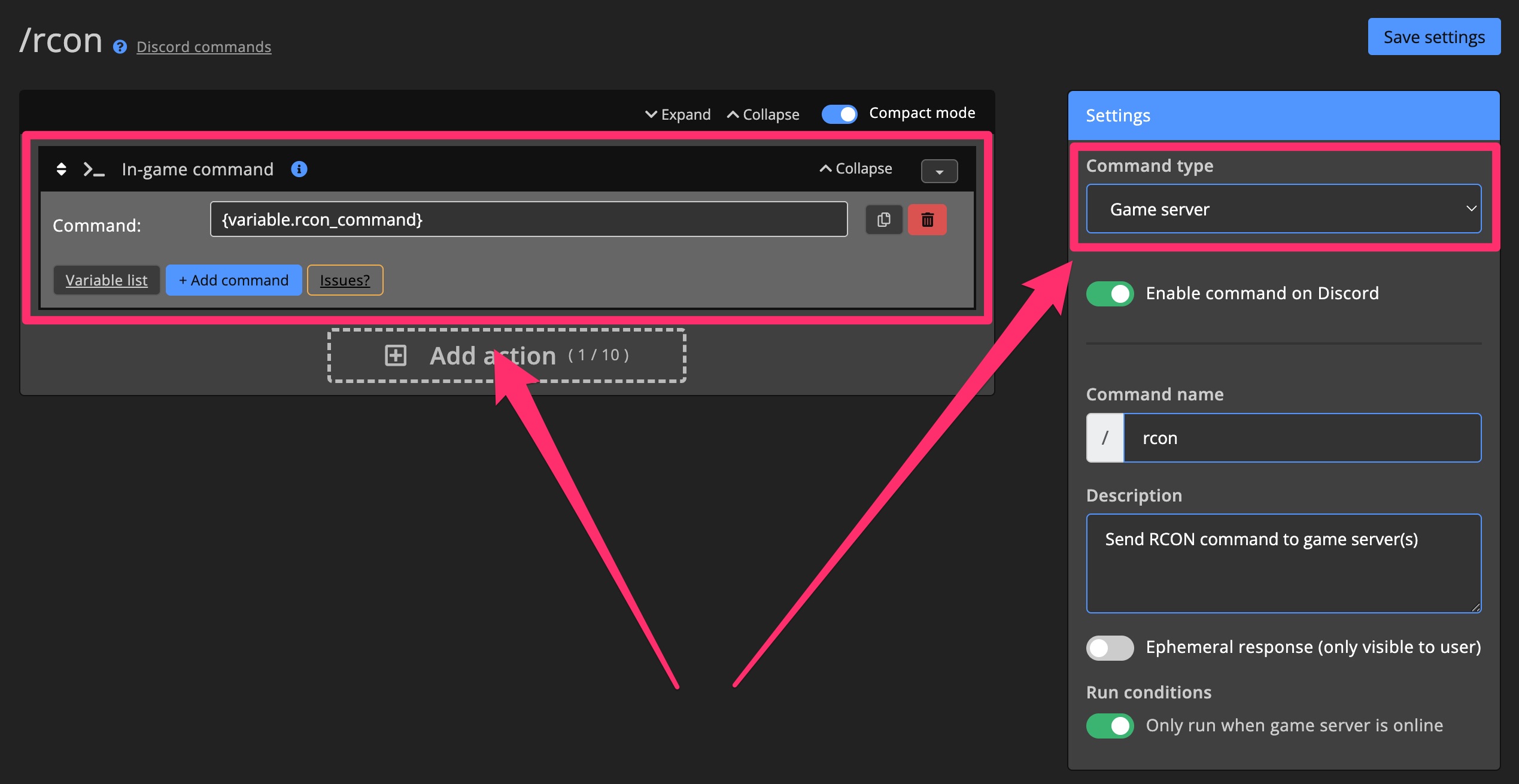
On this example we've added the Discord update interaction action. This action will replace the default Discord interaction message with a custom one.
We also enabled Ephemeral so the message will only be visible to the user who invoked the command.
Actions
Certain actions will automatically add arguments to your command.
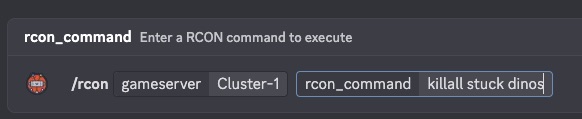
For example, when using the In-game command action, it will add the rcon_command argument to your command.
Learn more about all available actions >
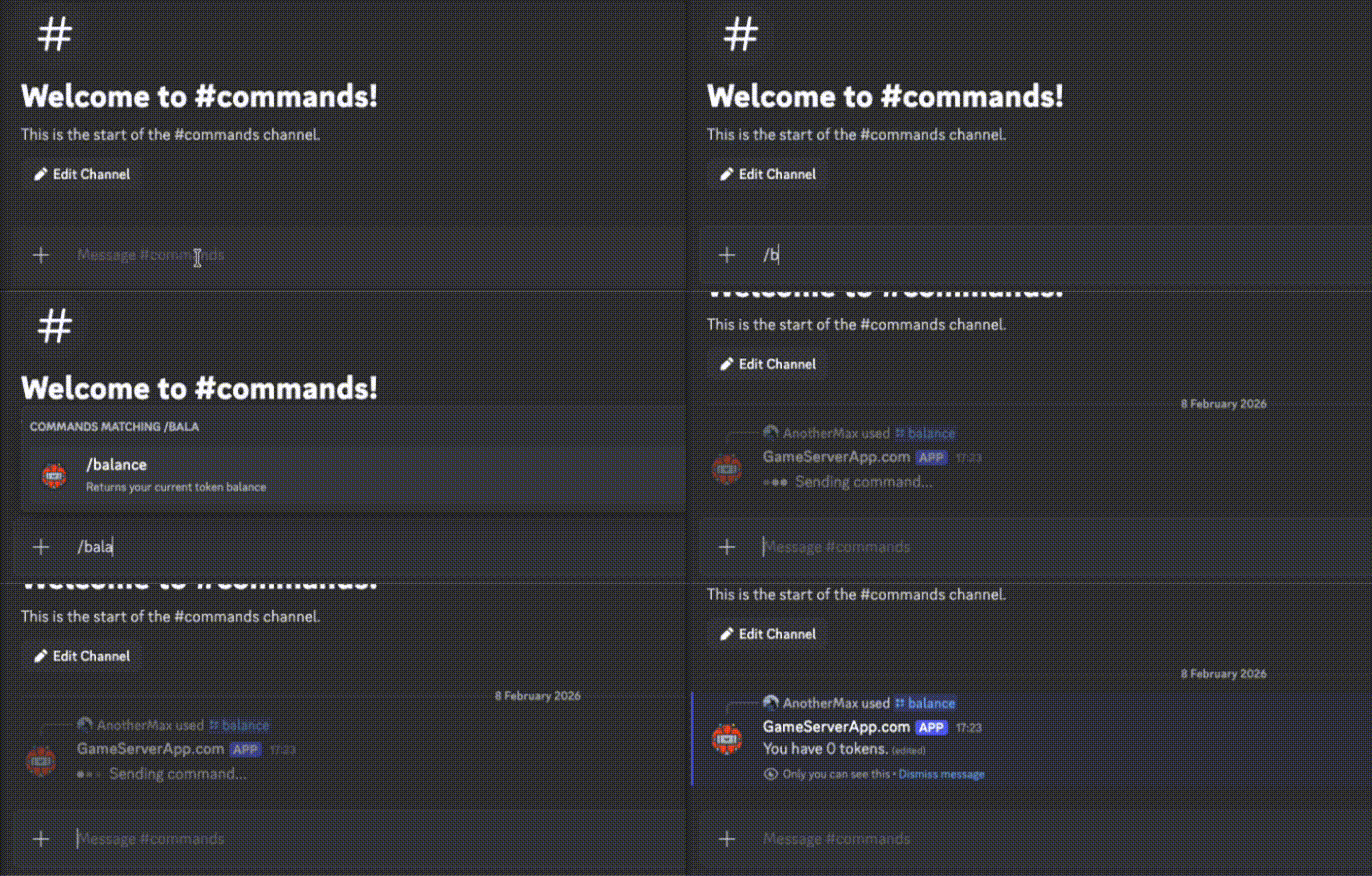
Which translates to this command:
Settings
Enable command
Only enabled commands will be available on Discord.
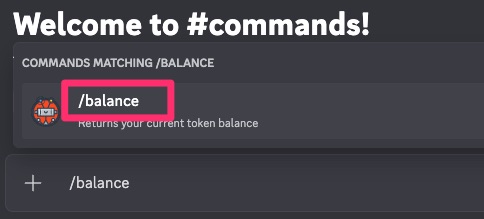
Command name
The name of the command that will be used on Discord.
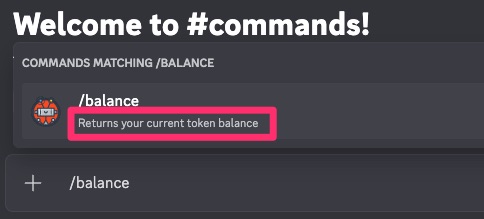
Description
A brief description of the command that will be displayed on Discord.
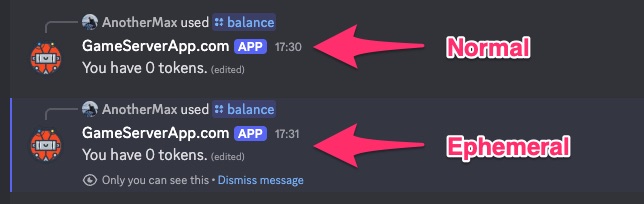
Ephemeral response
When enabled, the response to the command will be hidden from other users.
Emoji reactions
Emoji reactions can be useful for quick actions like rewarding players. Each emoji reaction comes with actions that run when you add an emoji to a message, and separate actions for when you remove an emoji from a message.
If you used GSA's task / delivery system already, then the emoji reactions system will feel familiar.
Create an emoji reaction
You can create a new emoji reaction or download them from the marketplace and edit to your needs.
Find inspiration or get started with emoji reaction using the Discord Marketplace >
Click + Add reaction to create a new emoji reaction.
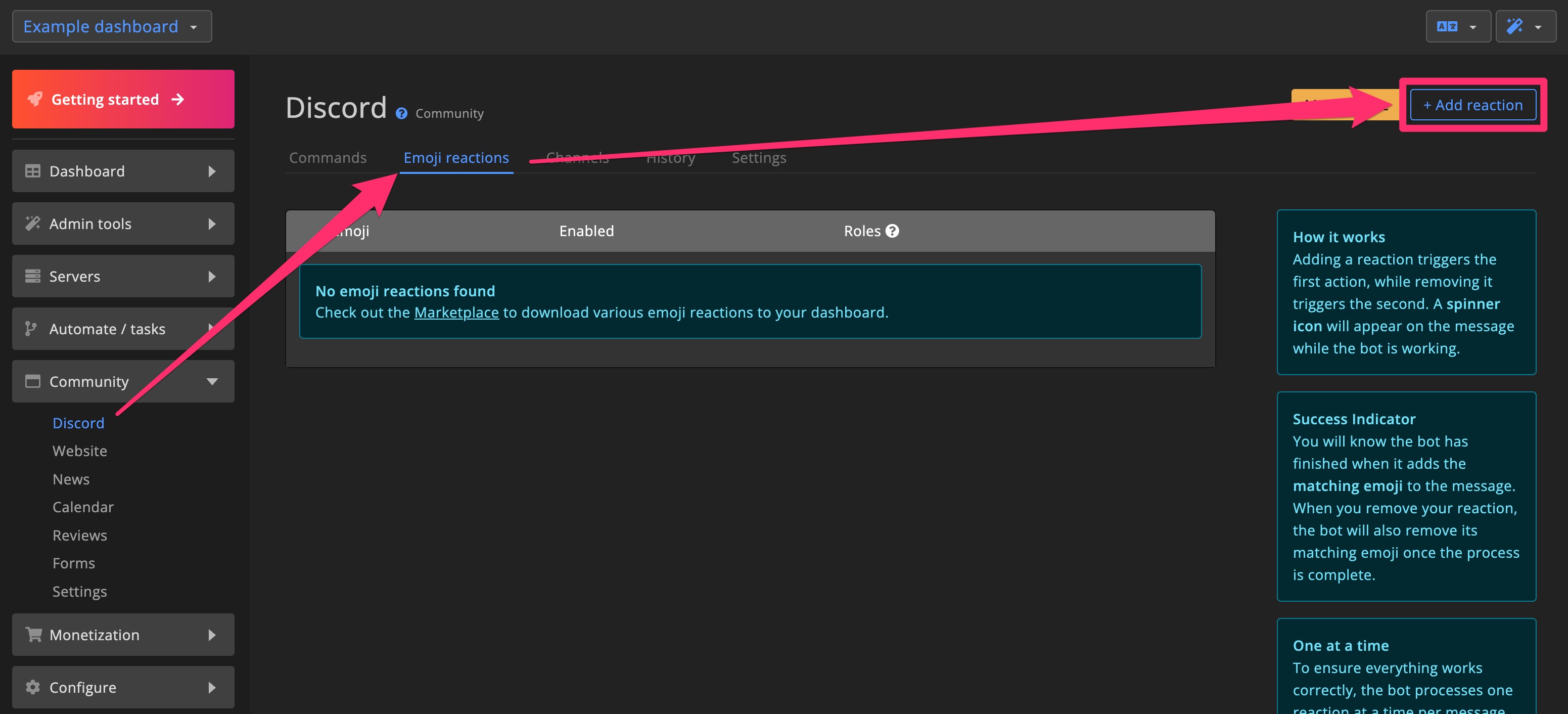
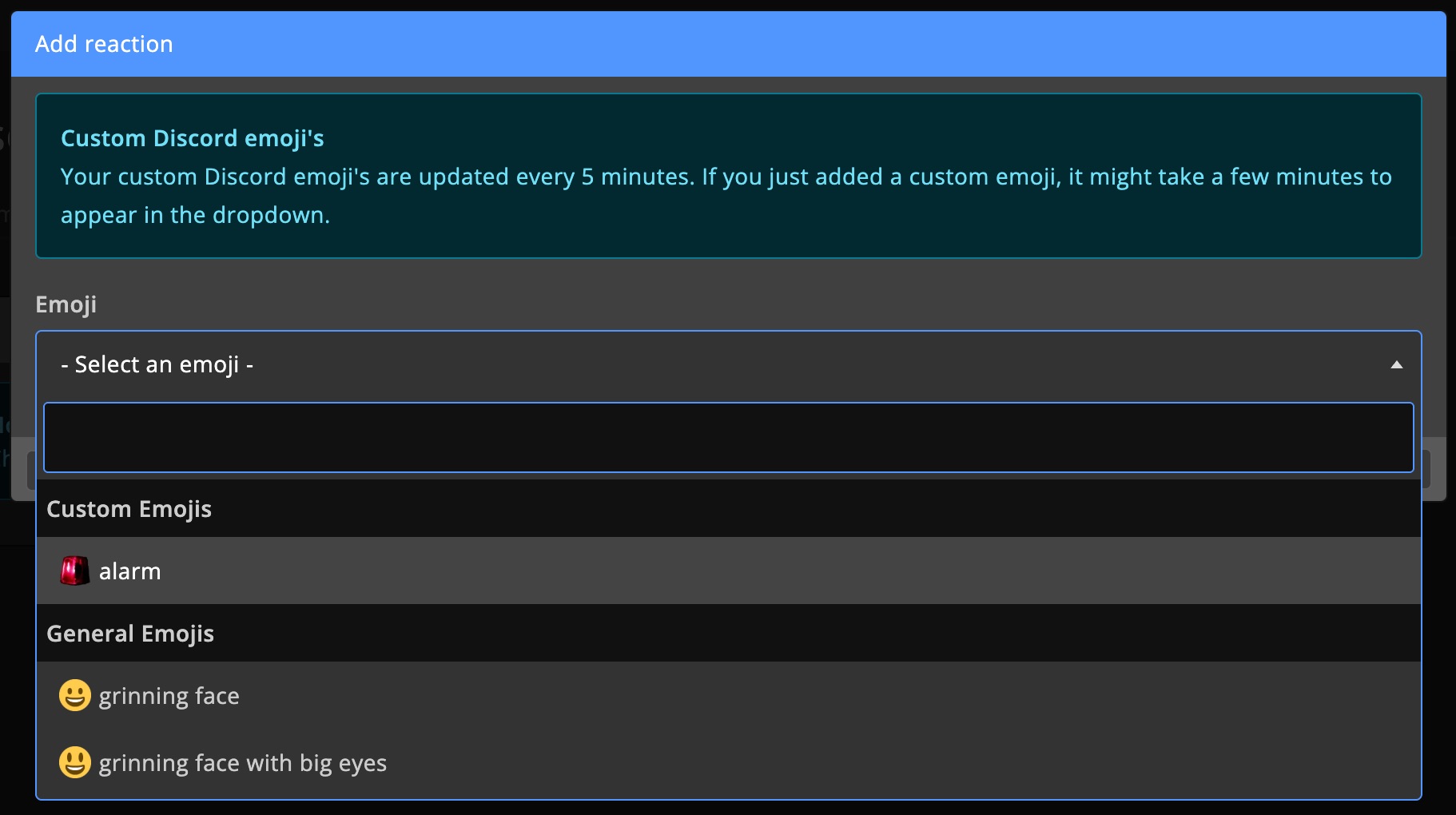
Select the emoji you want to use.
You can use any emoji from the Discord emoji list as well as any custom emoji you've uploaded to your Discord server.
Add actions to your emoji reaction, select which roles can use it, and enable it.
After enabling an emoji reaction, it may take a few minutes before the bot will process it. Please be patient.
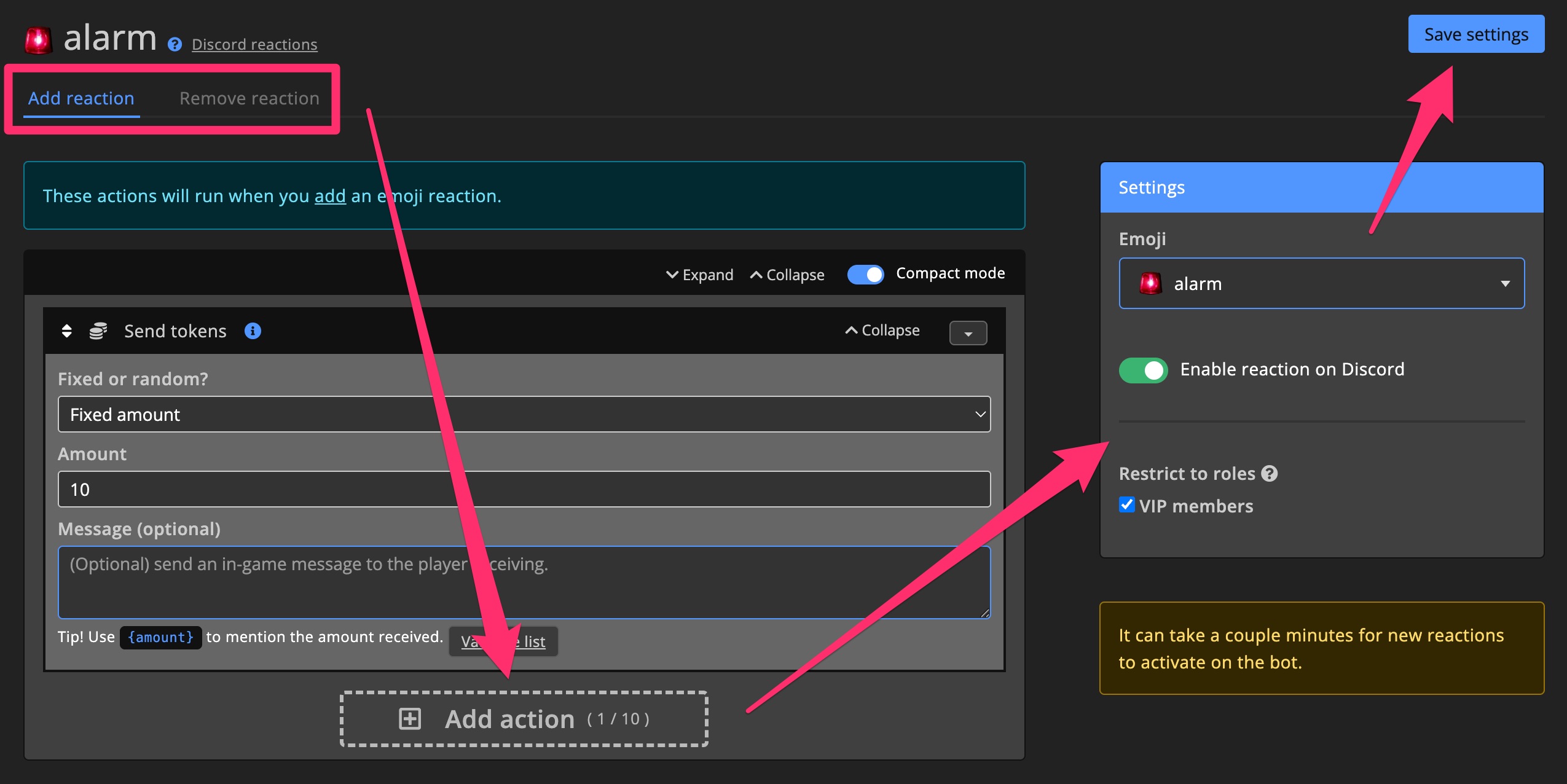
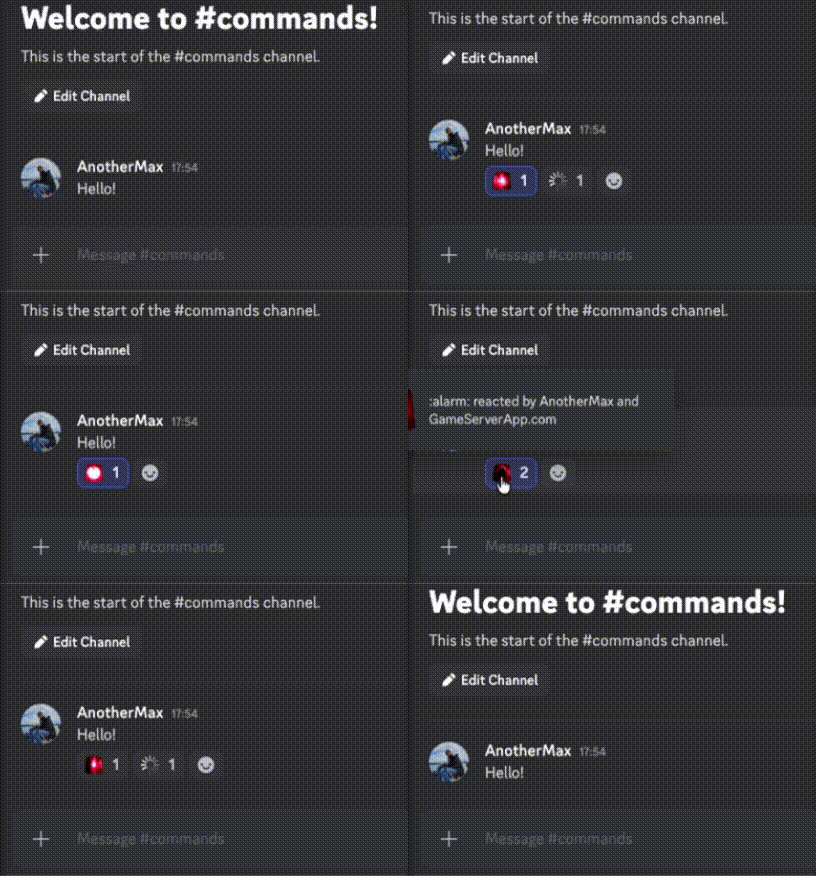
On this example we've used the Send tokens action. When adding the selected emoji to a message, the bot will send 10 tokens to author of the message. Removing the emoji will remove the tokens again (assuming you set up the -10 tokens action on Remove reaction).
Settings
Enable reaction
Only enabled reactions will be available on Discord.
Roles
Select which roles can use this reaction. If no roles are selected, everyone will be able to use the emoji reaction.
Channels
Discord + Cluster chat
Chat directly with in-game players from Discord. Supported in all games that support Cluster chat.
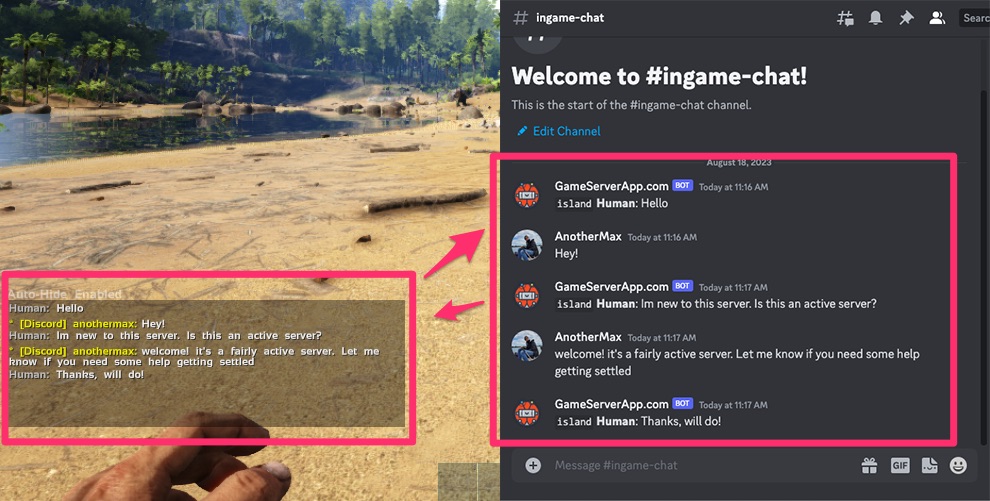
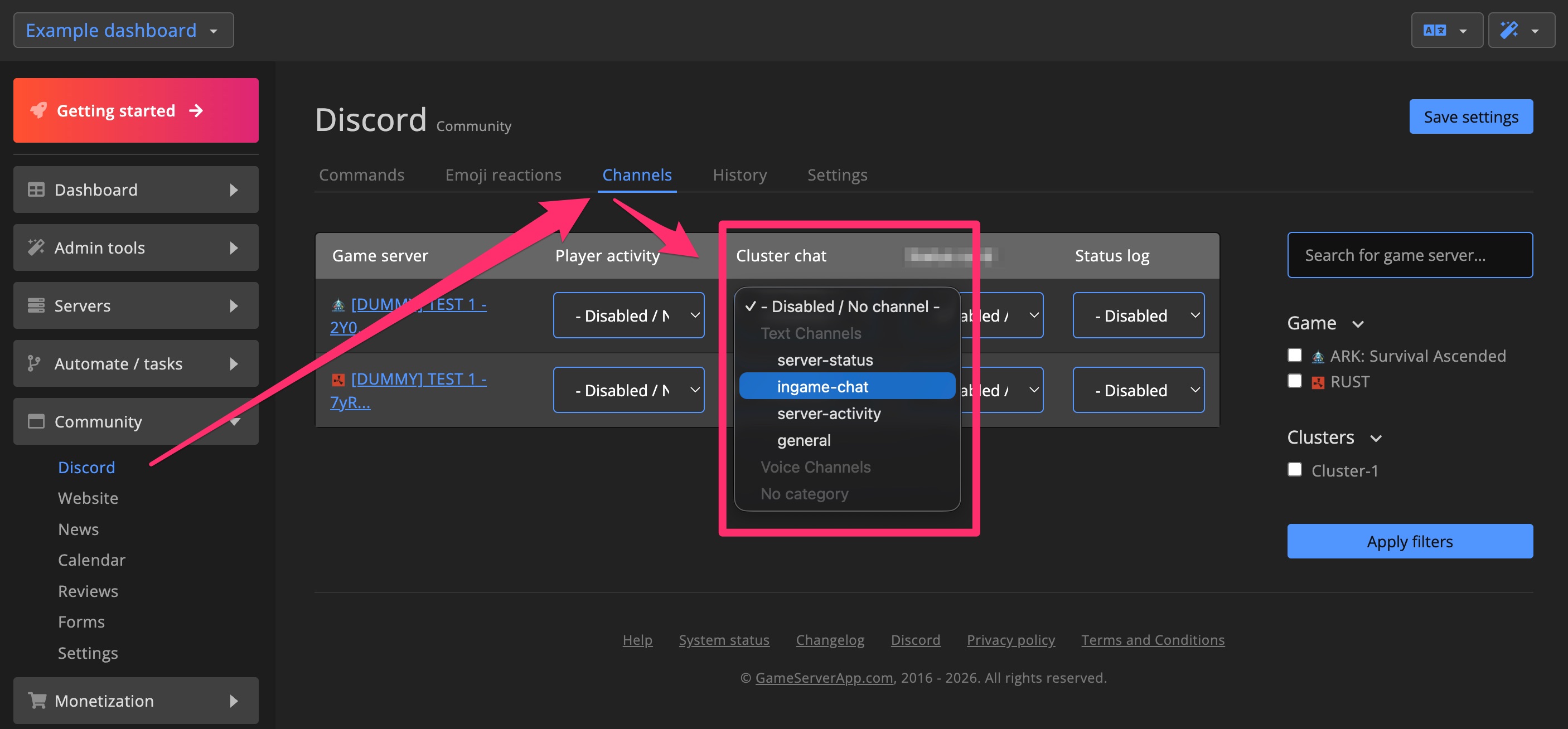
Go to the Discord page and assign a channel to the Discord + Cluster chat setting.
It may take a few minutes for chat to activate after saving your channel. Please be patient.
Player join / leave
Get real-time join/leave notifications in Discord when players enter or exit a game server.
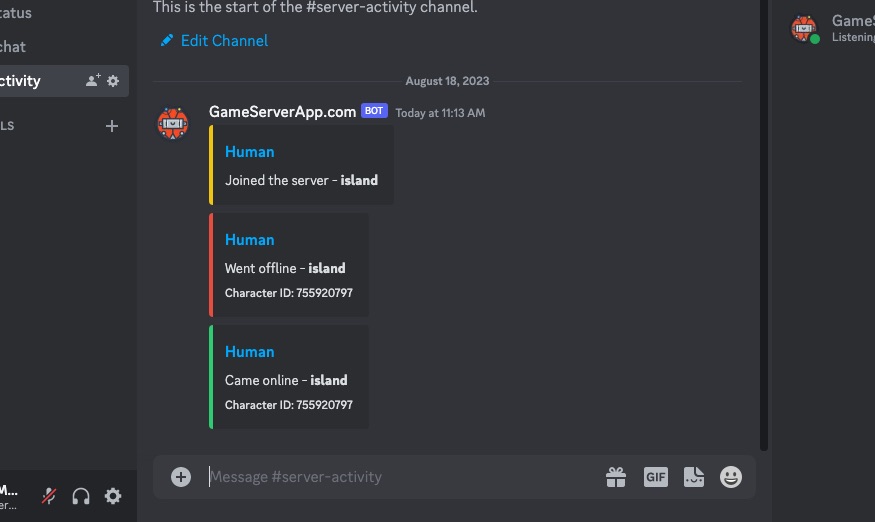
Set up the Player join & leave channel on the Discord page.
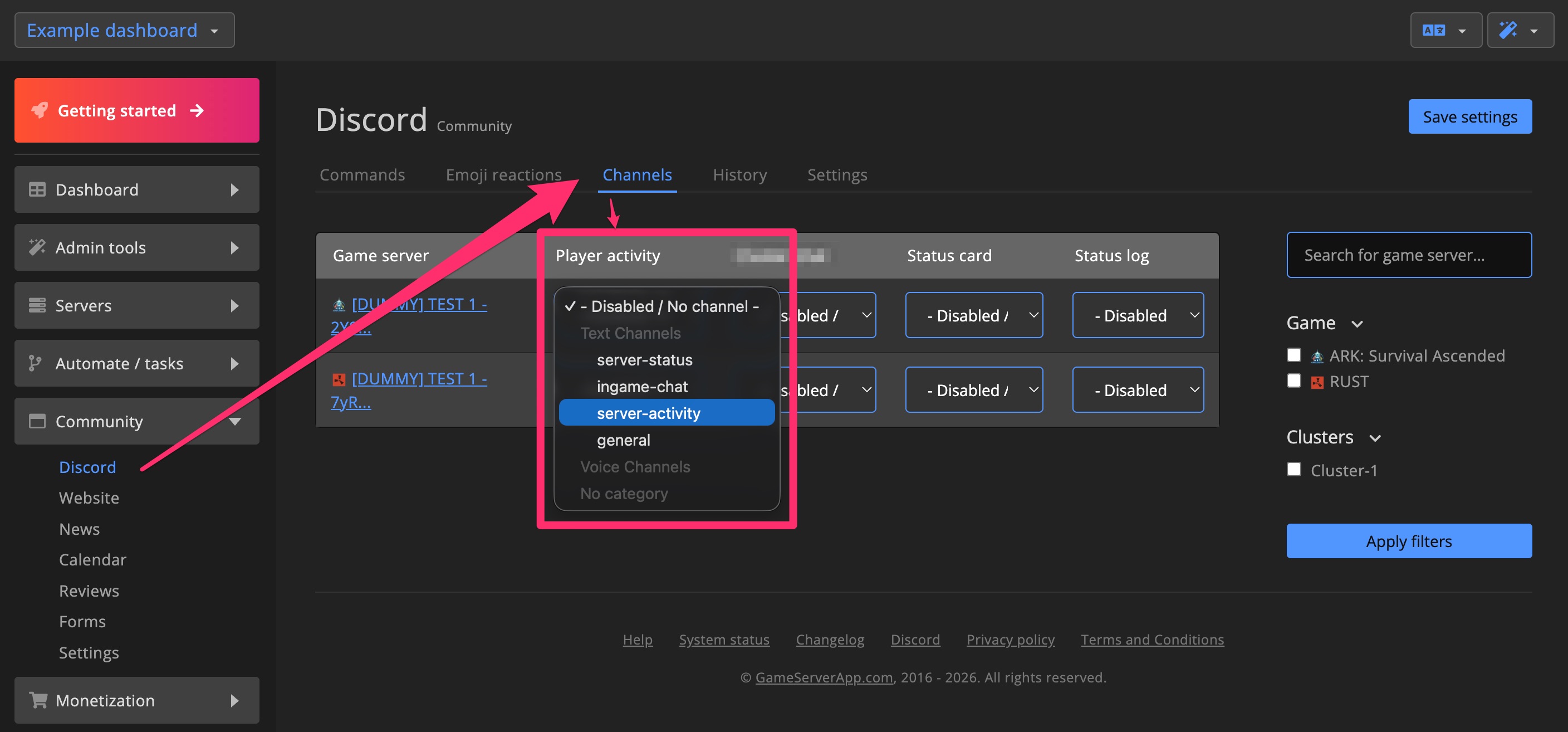
Game server status card
Display a real-time server status card that updates on events like restarts or updates.
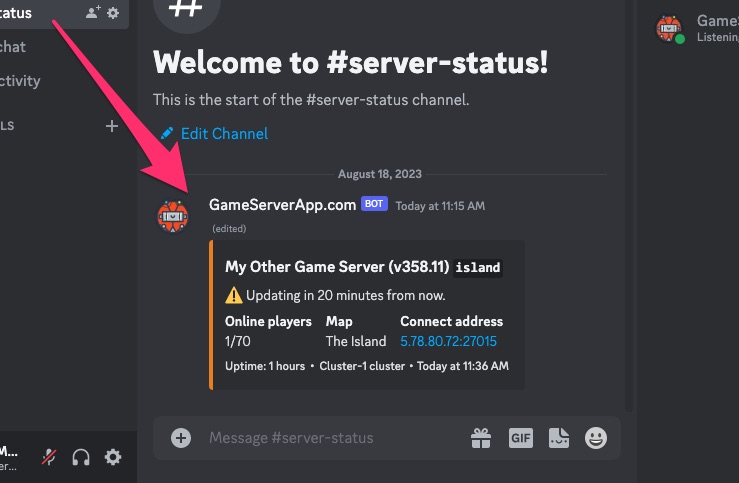
You can customize the status card text on the settings page.
Assign a channel for the Game server status card on the Discord page.
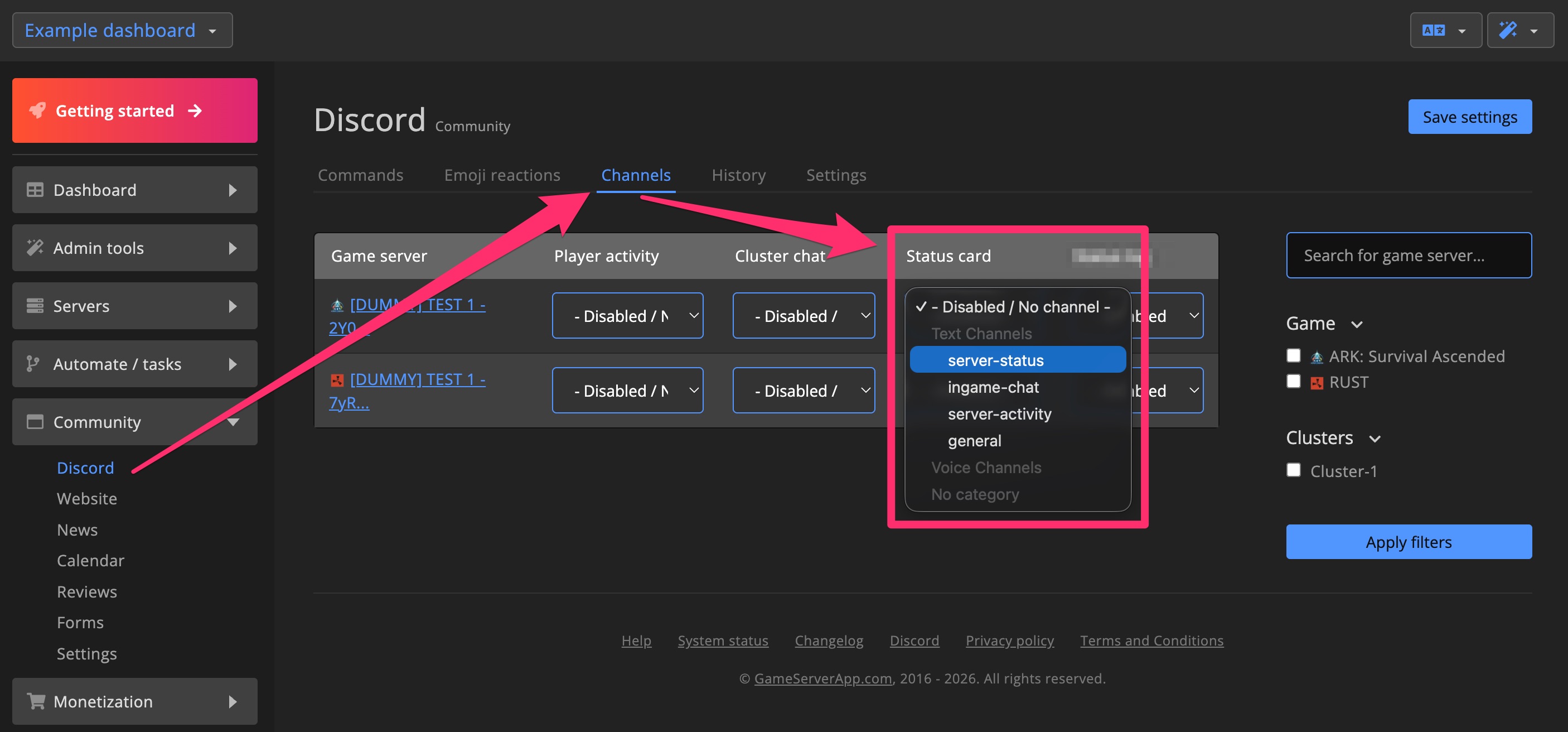
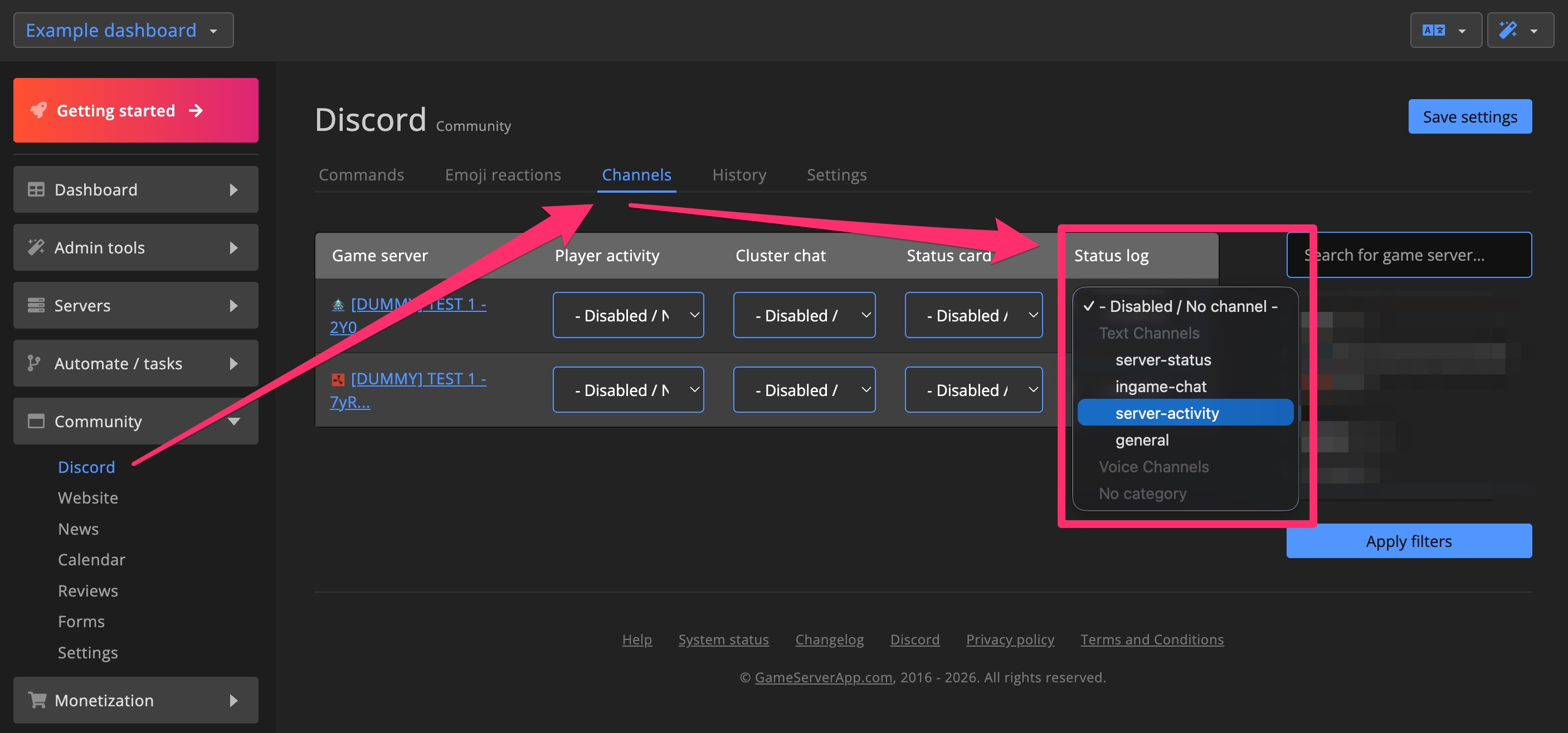
Game server status log
Track detailed server events such as startup, shutdown, or mod updates in Discord.
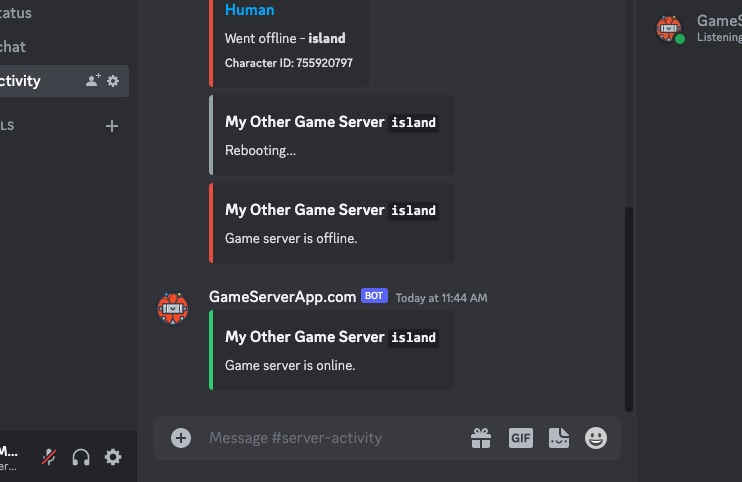
You can customize the status log text on the settings page.
Assign a channel for the Game server status log on the Discord page.
Stats channels
Stats channels are used to display server statistics in Discord.

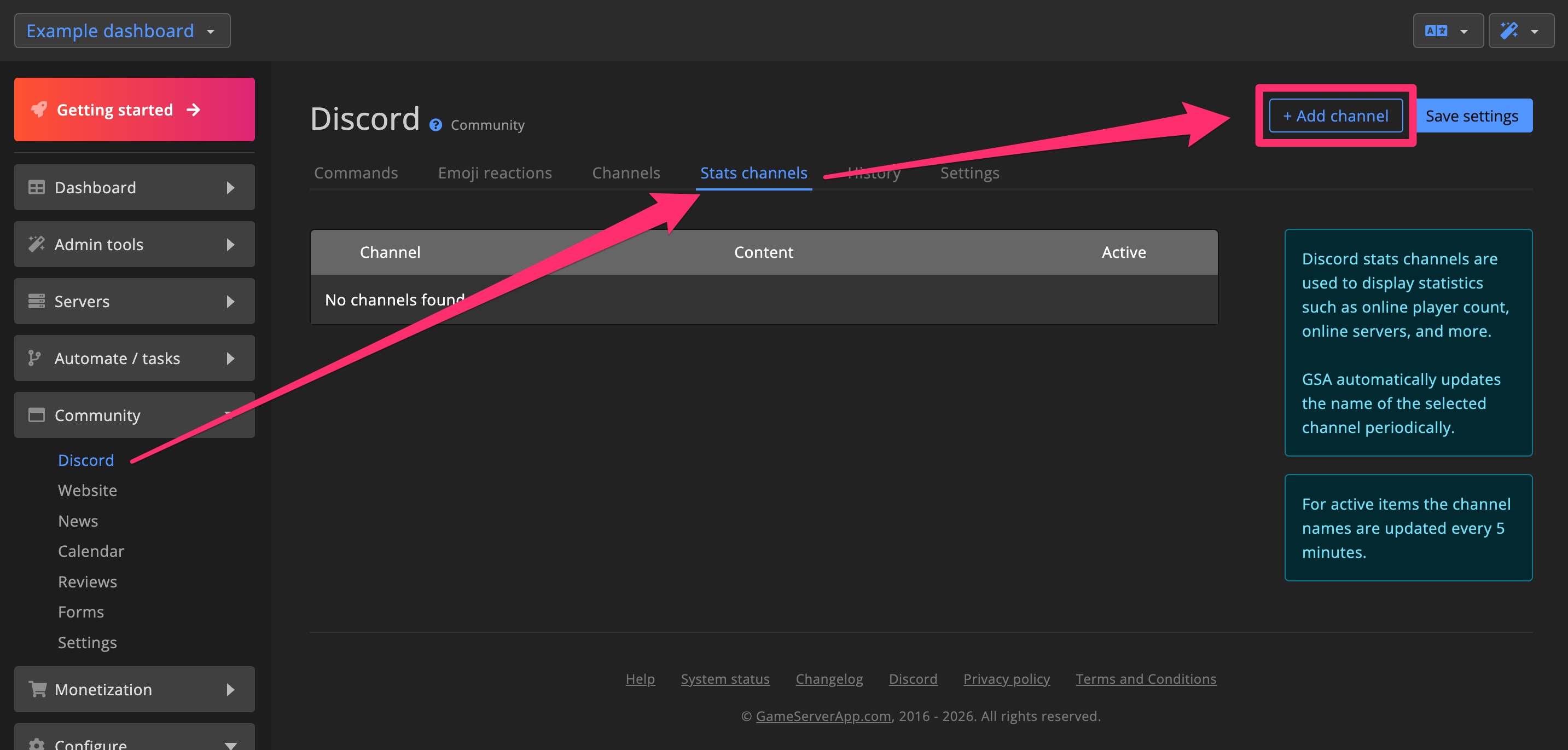
Add stats channel
Add a channel for server statistics on the Discord page.
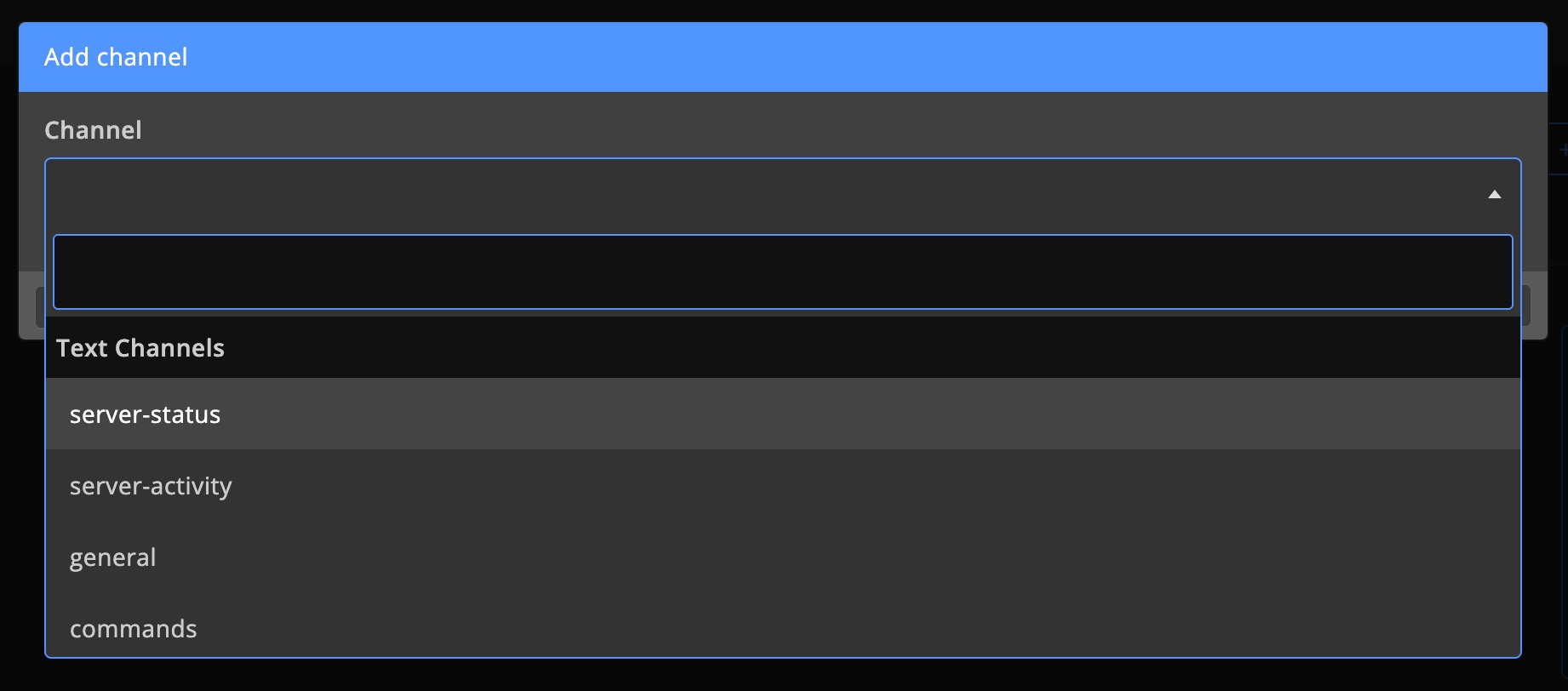
Select a channel and click Create. For the best result, use voice channels.
Stats channel settings
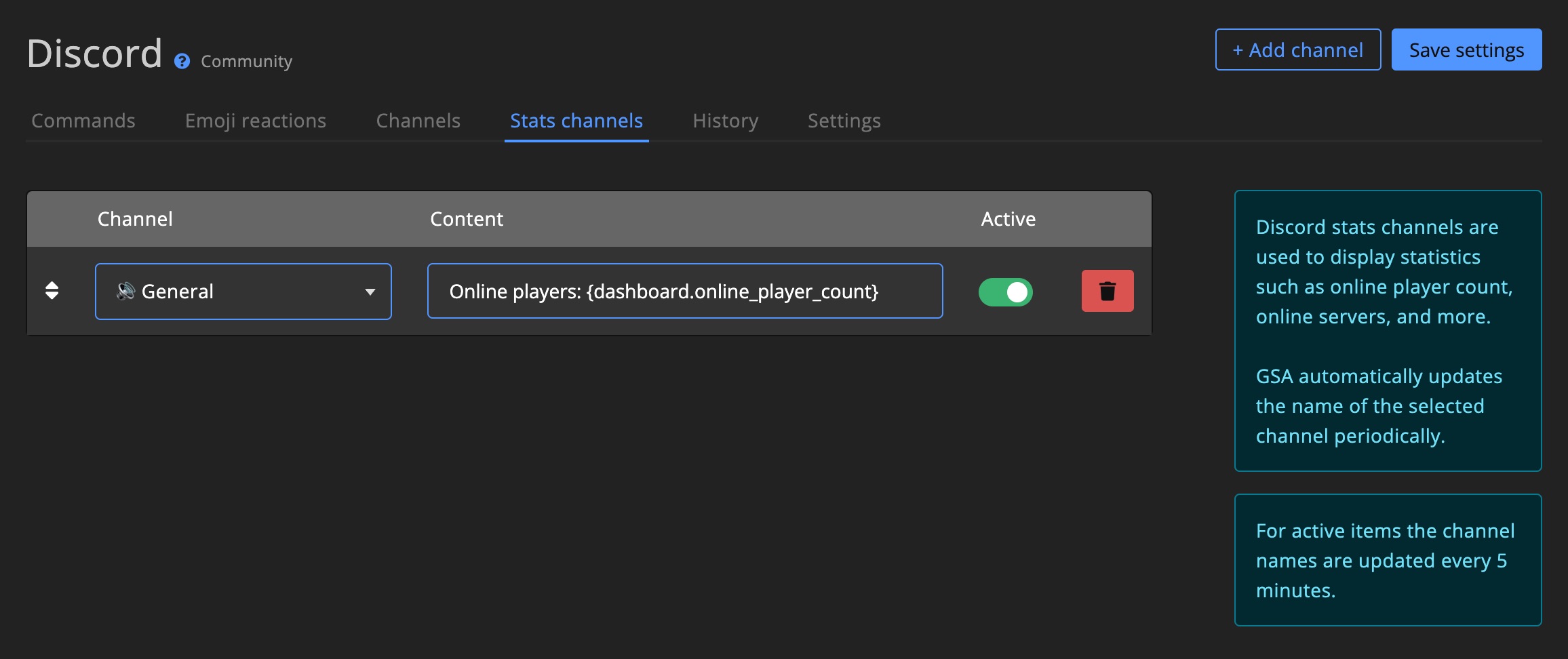
You can customize the stats channels using a text field and variables. This gives you full control over the stats channel and how you want to display the statistics.
You can use Cluster variables and Dashboard variables in the text field.
Dynamic cards
Dynamic cards are used to display server statistics in Discord. Each embed is automatically updated every 5 minutes.
Card types
There are various types of dynamic cards available. Some have different variations:
- Online player list
- Character | Group
- Character | Level | Server
- Character | Player | Level
- Fresh player list
- Character | Level | Server
- Character | Player | Level
- Character | Joined at
- Character | Level | Joined at
- Top 20 characters by level
- Character | Level | Server
- Character | Player | Level
- Character | Level | Joined at
- Top 20 voters
- Top 20 donors
- Top 20 token holders
- Top 20 hours played
- Top 20 achievement score (global)
Filters
Filters are used to limit the data displayed in the dynamic card. You can use the following filters:
- Game server - This will only display data for the selected game server.
- Cluster - This will only display data for the selected cluster.
- Dashboard - This will display data for the entire dashboard.
Add dynamic card
Add a dynamic card on the Discord page.
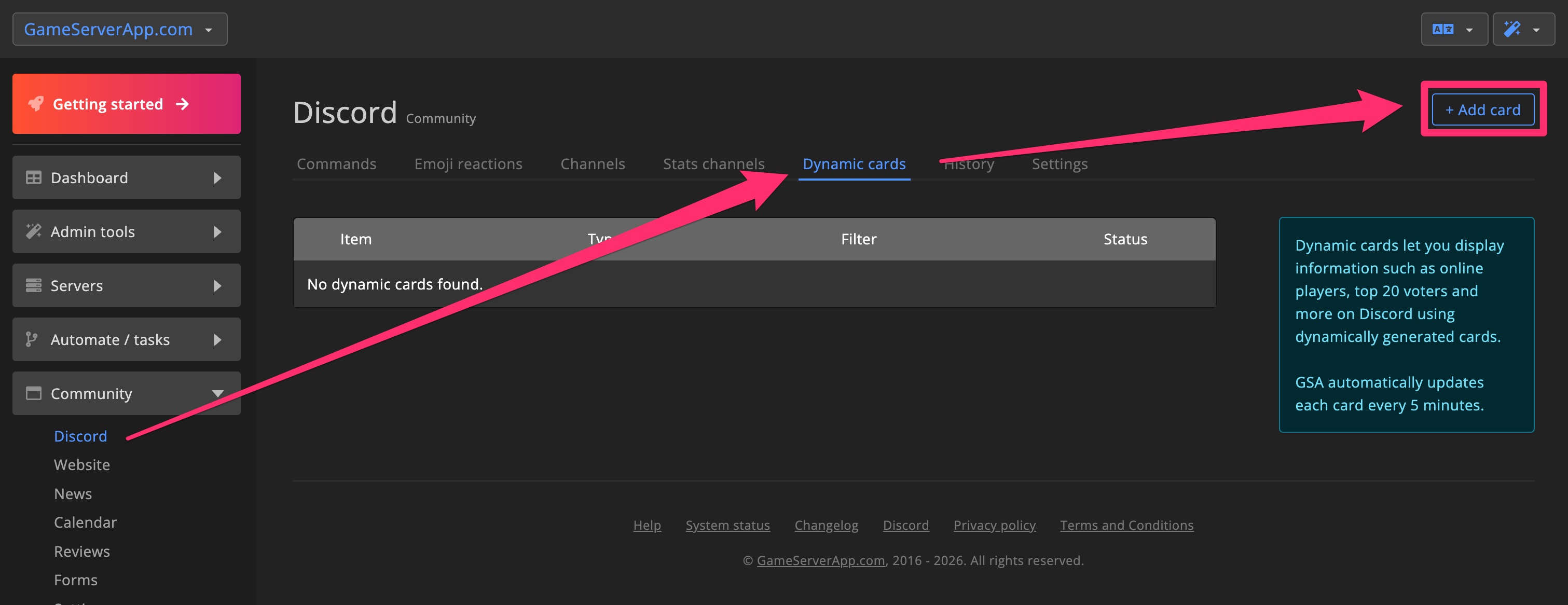
Enter a title for the card, select what kind of card type you want to use, determine a filter, and select a channel. Click Create to add the card.
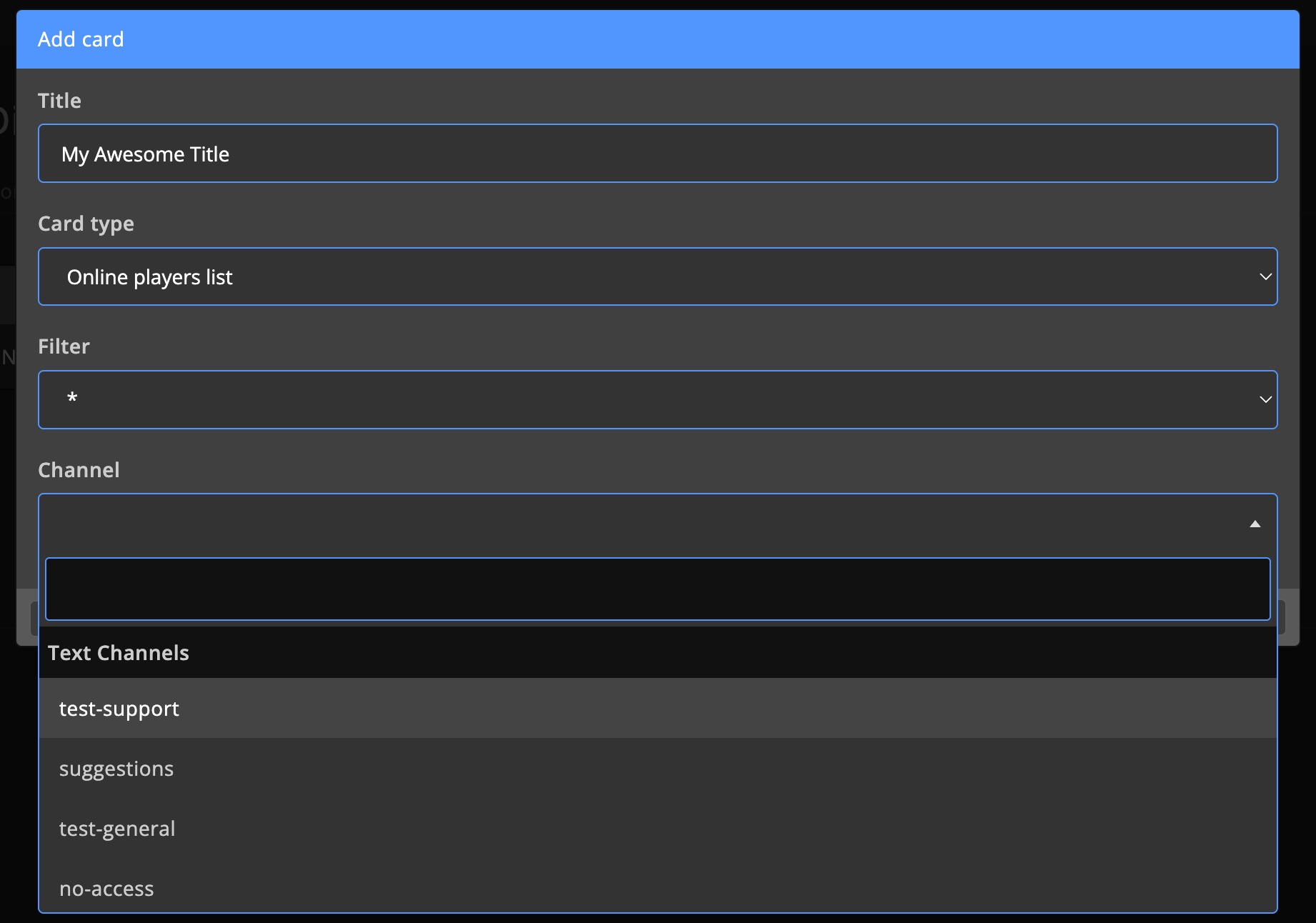
Dynamic card settings
For each dynamic card, you can customize the title, description, and color. These are used for the Discord embed.
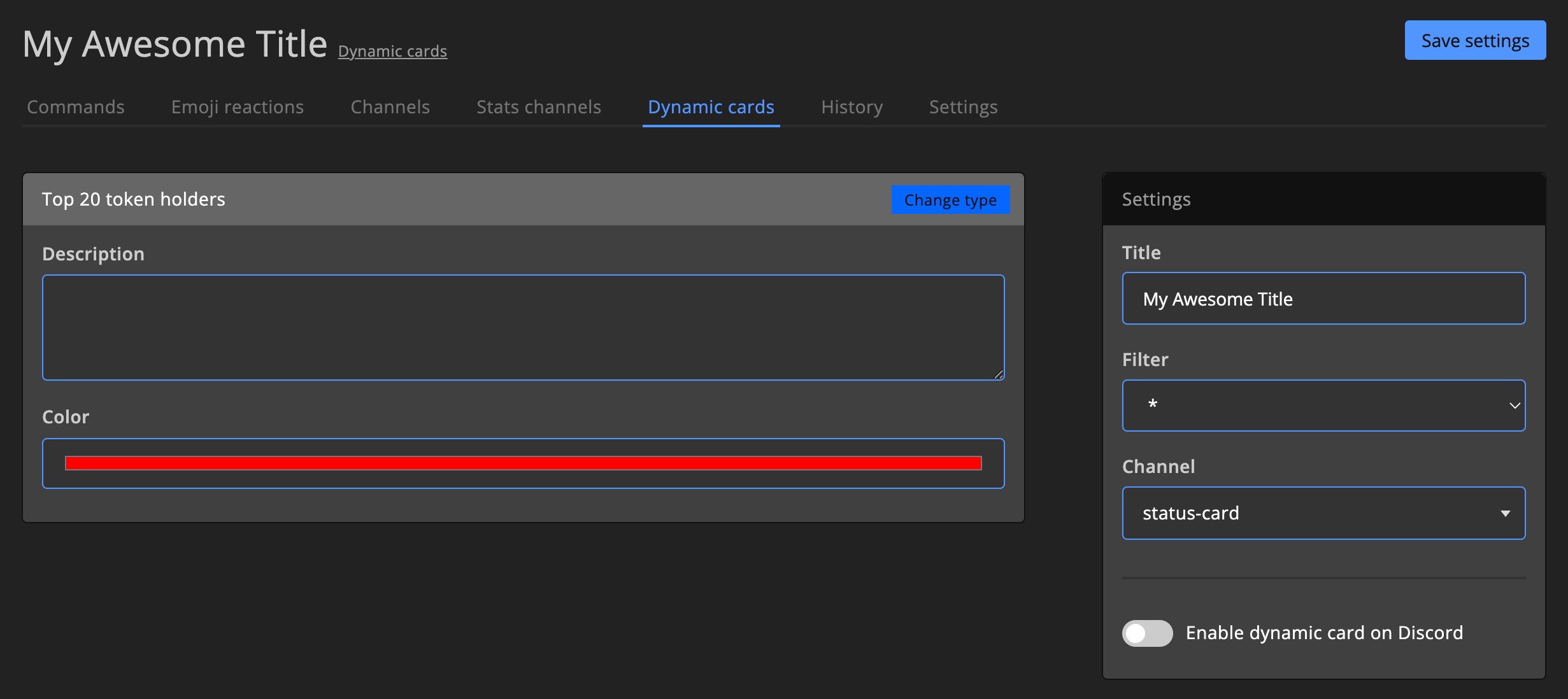
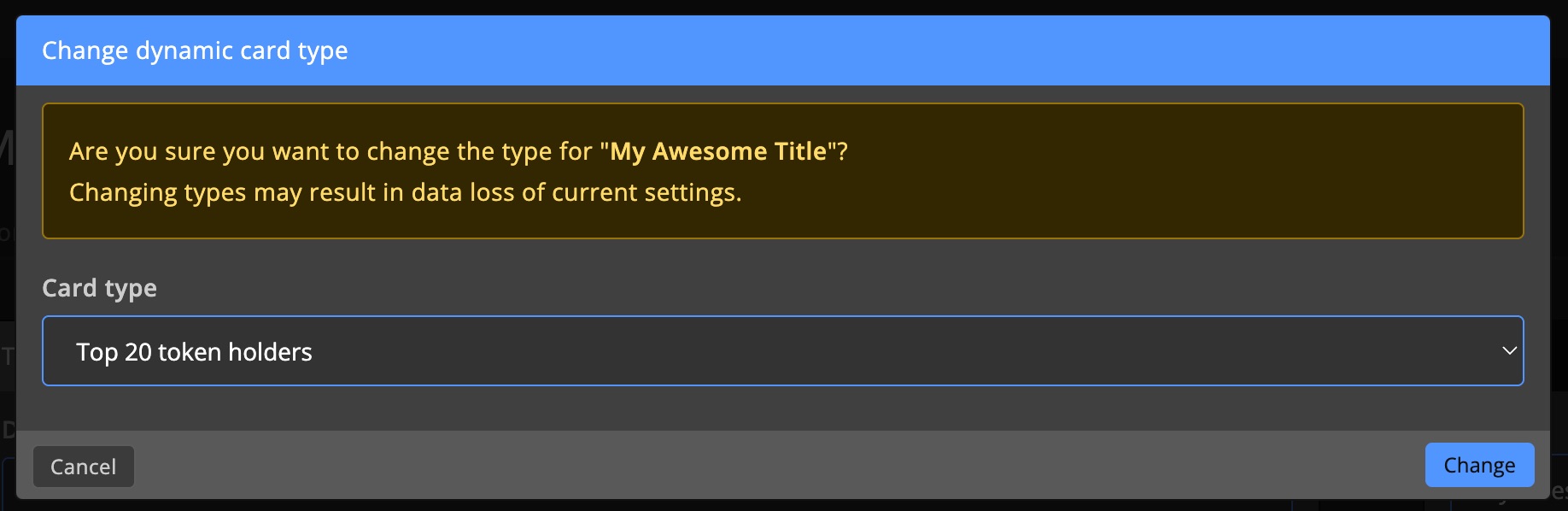
Change card type
You can change the type of the dynamic card at any time.
Click Change type on the card settings.
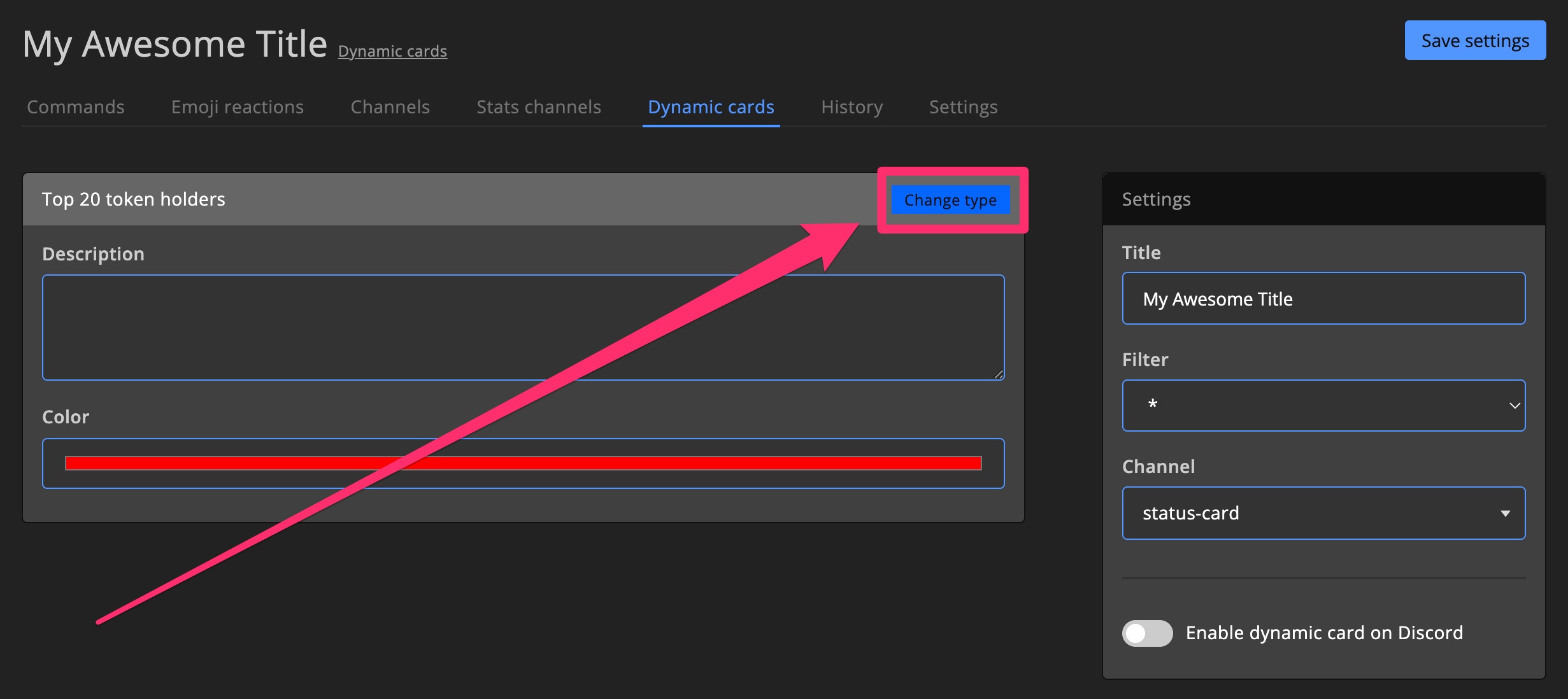
Select a new card type and click Save.
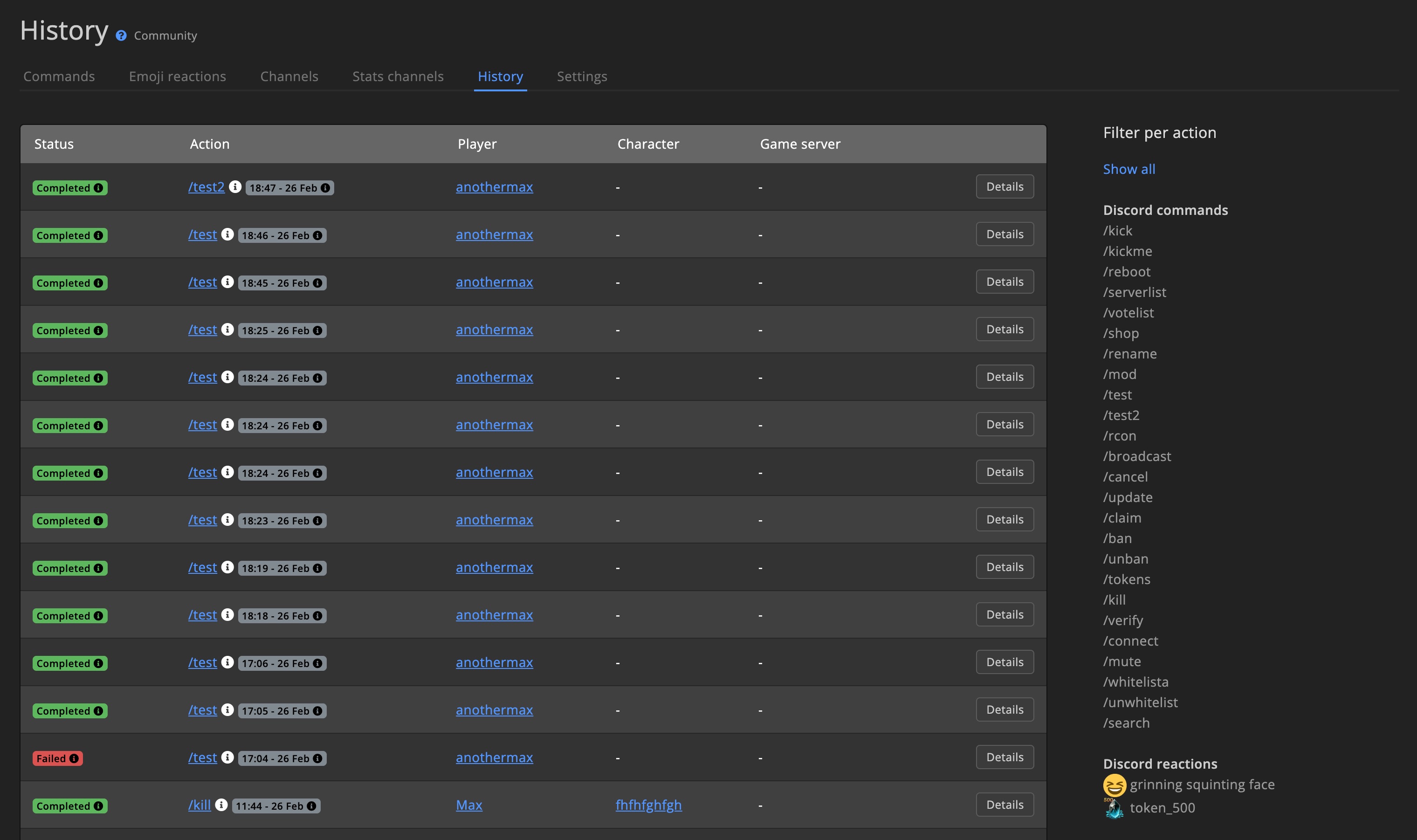
History
All Discord Slash commands and emoji reactions are logged in the History channel. For each run you can see what happened and whether there were any errors.
This part is identical to Task run logs and Delivery history.
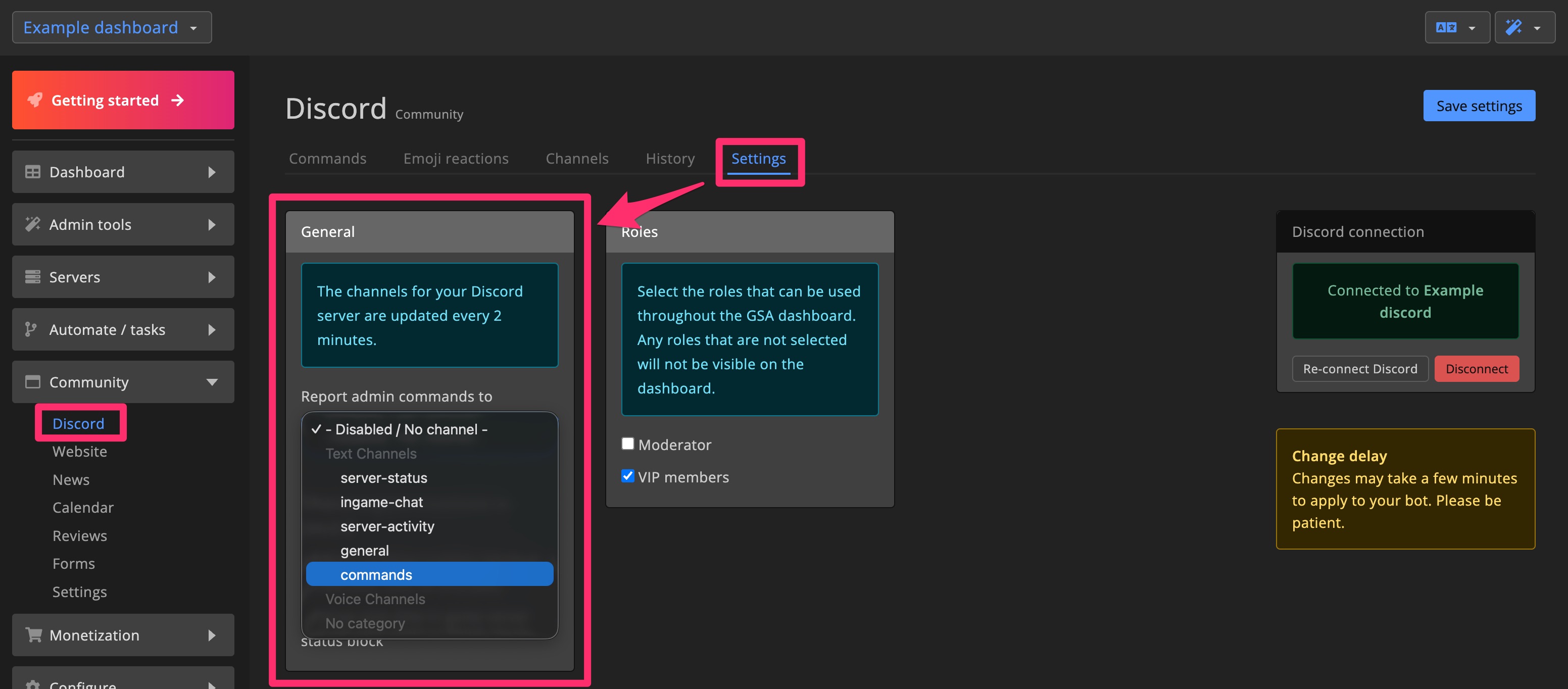
Settings
General
Report admin commands
Select a channel to send admin commands to. Admin commands used in-game are logged in this channel.
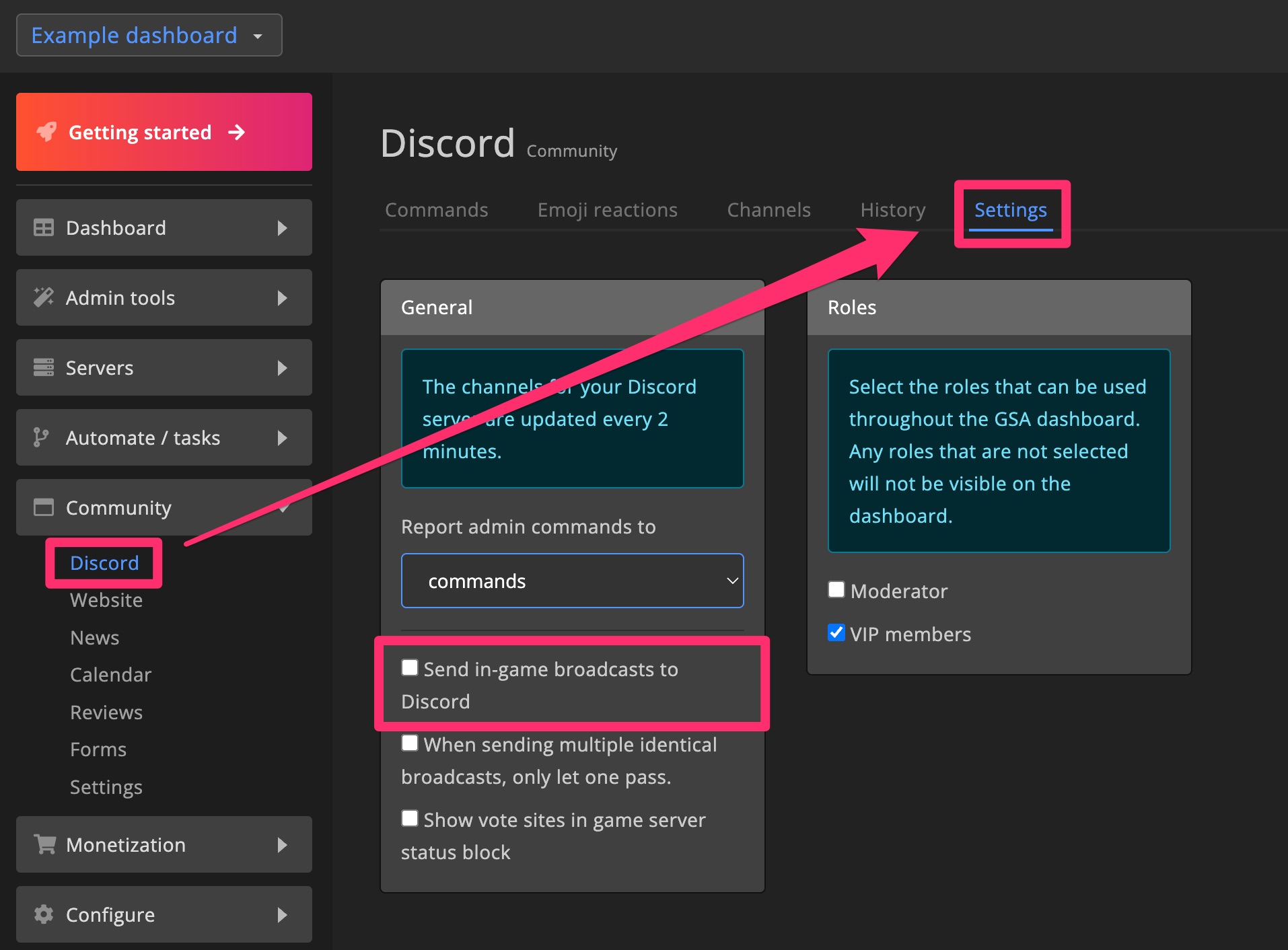
Send in-game broadcasts to Discord
Decide whether in-game broadcasts should be sent to Discord too.
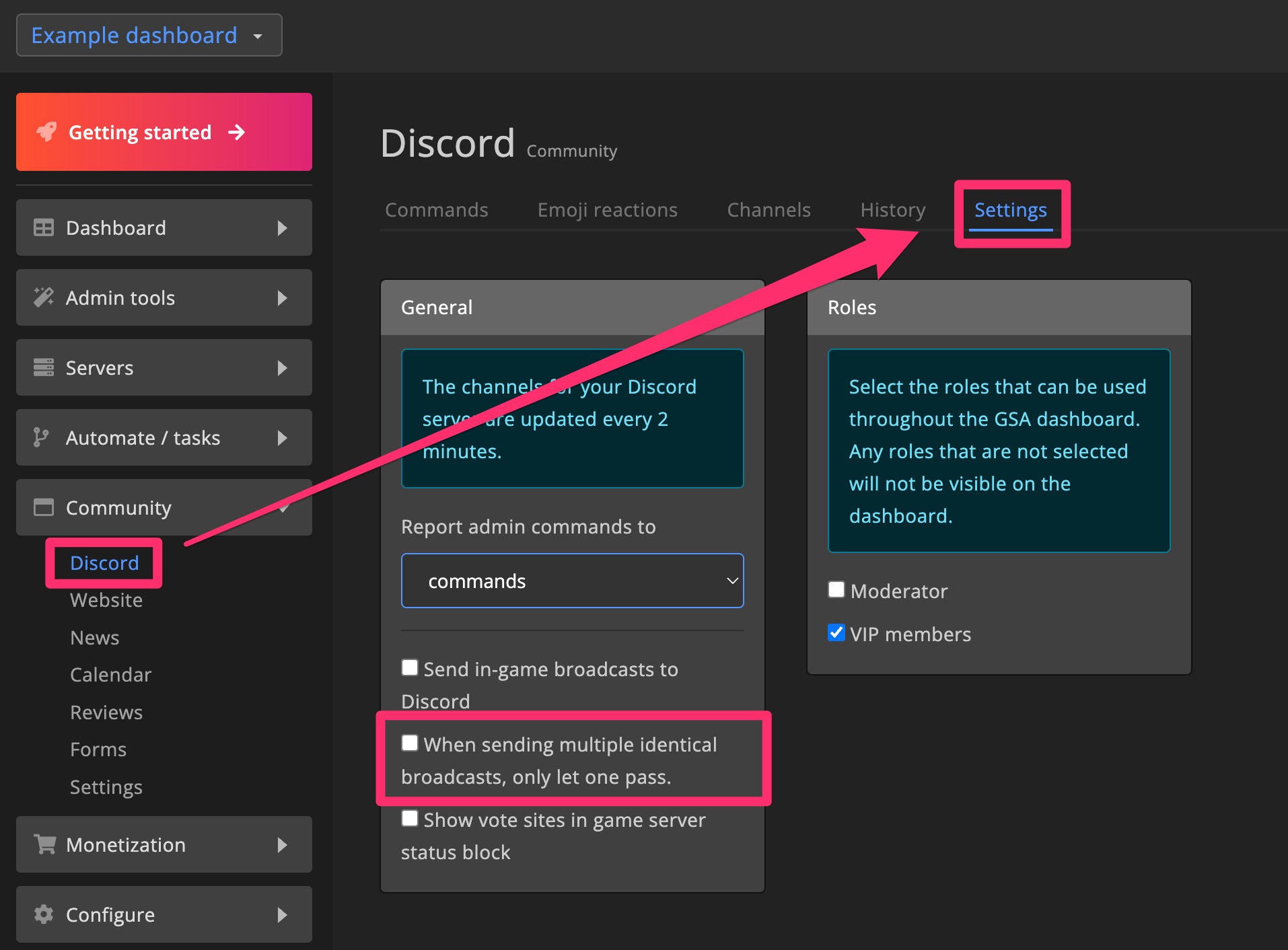
Avoiding broadcast spam
Reduce the number of broadcasts sent to Discord. This feature is useful when you send broadcasts to multiple game servers. Only one broadcast will be sent to Discord, avoiding spam.
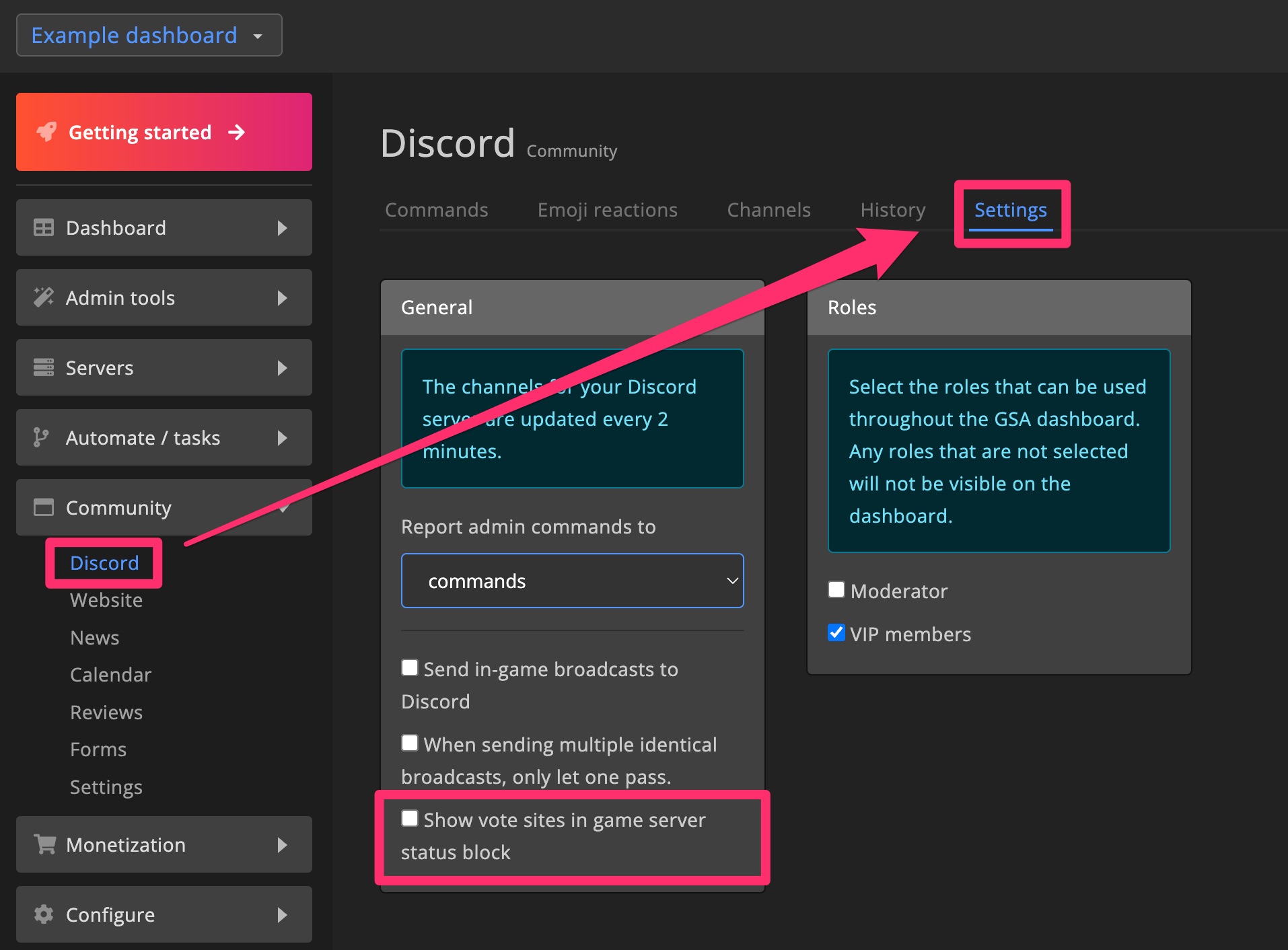
Status block vote sites
This setting will add the configured vote sites to the status card for each game server.
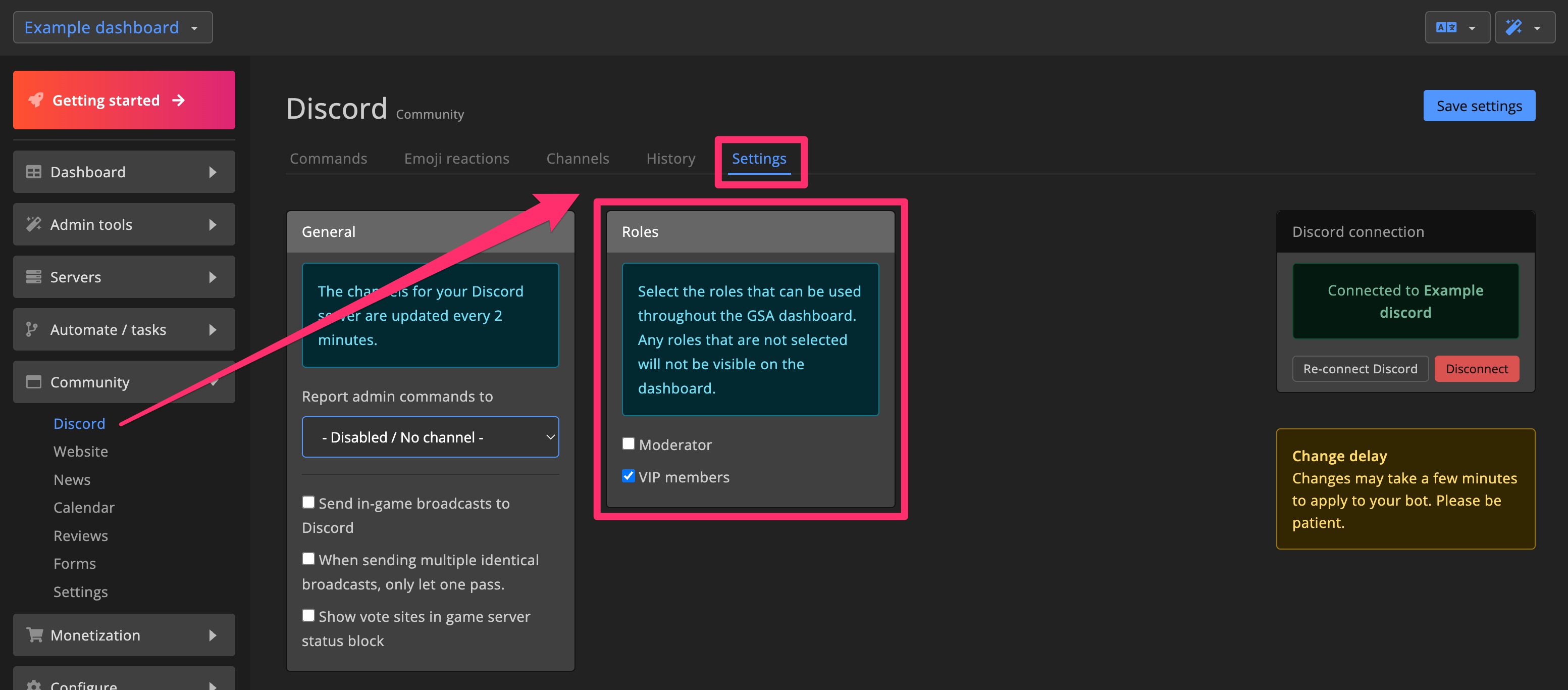
Roles
Control which roles can be controlled on the dashboard. Only roles that you enabled can be used on tasks, deliveries, etc. It's recommended to leave roles with administrator & moderator permissions disabled.
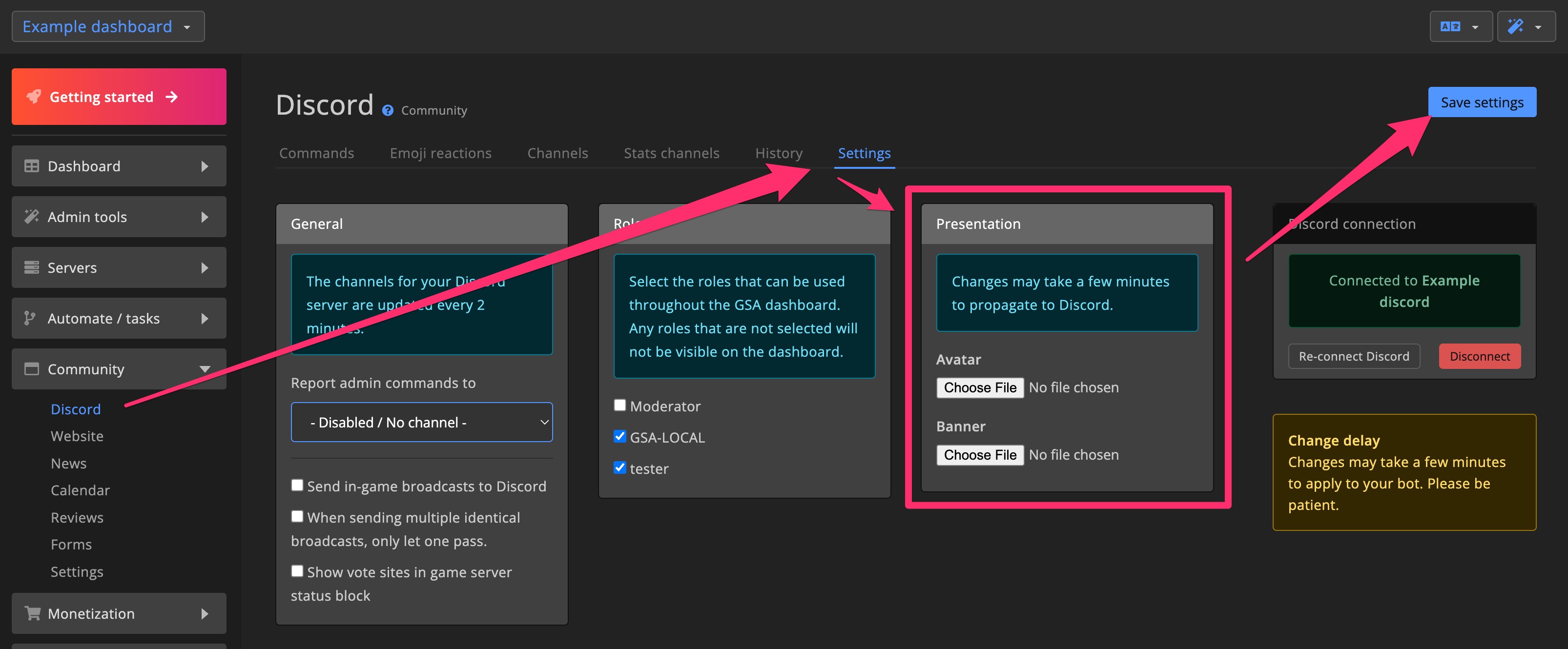
Custom bot avatar
Upload a bot avatar and banner to customize the bot's appearance.
Discord two-way-chat prefix
You can customize the prefix used for two-way-chat. This prefix helps in-game players identify the message as coming from Discord. The default prefix is [Discord].

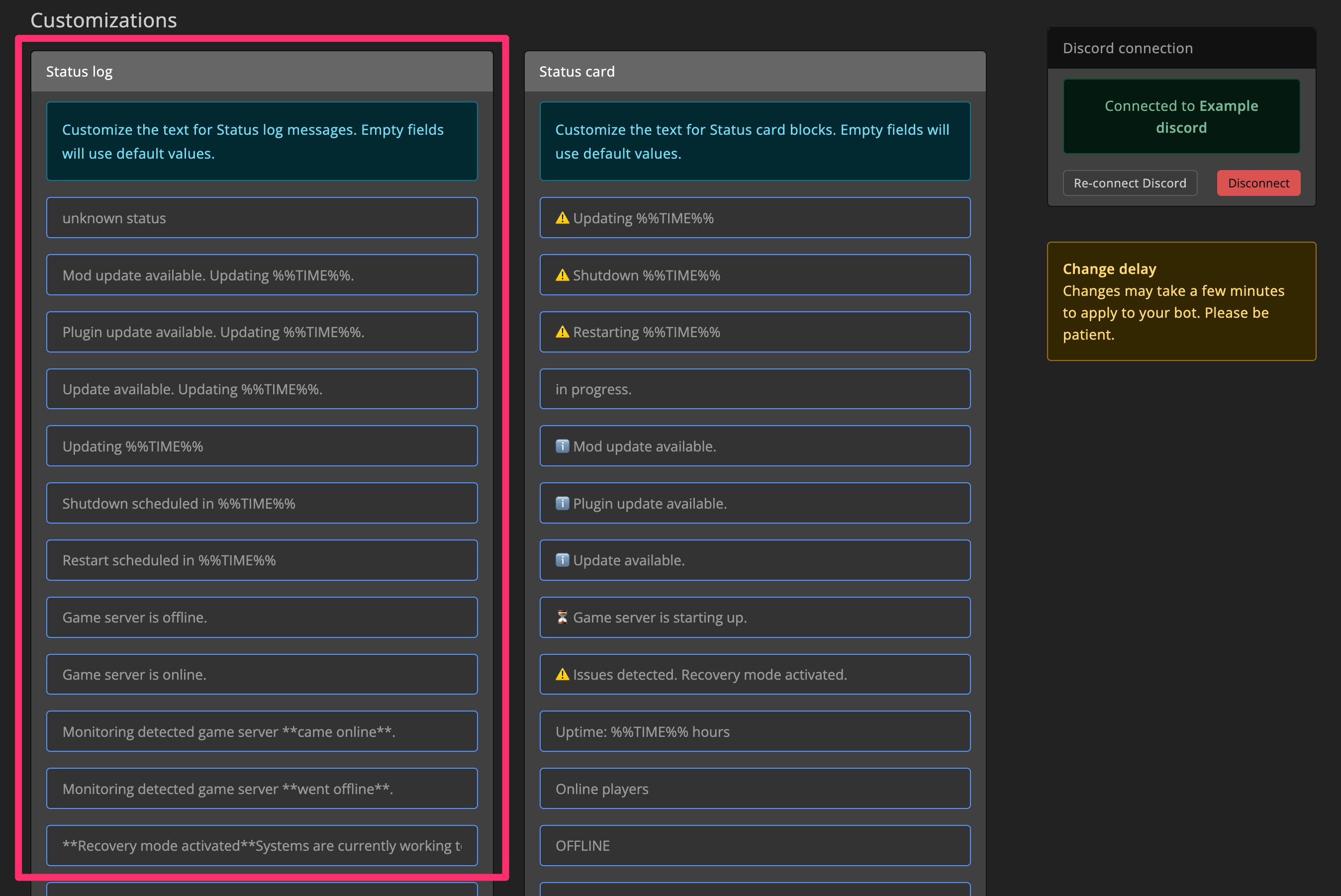
Customize status log
You can customize the Discord status log on the Discord settings page. Empty fields will use the default text.
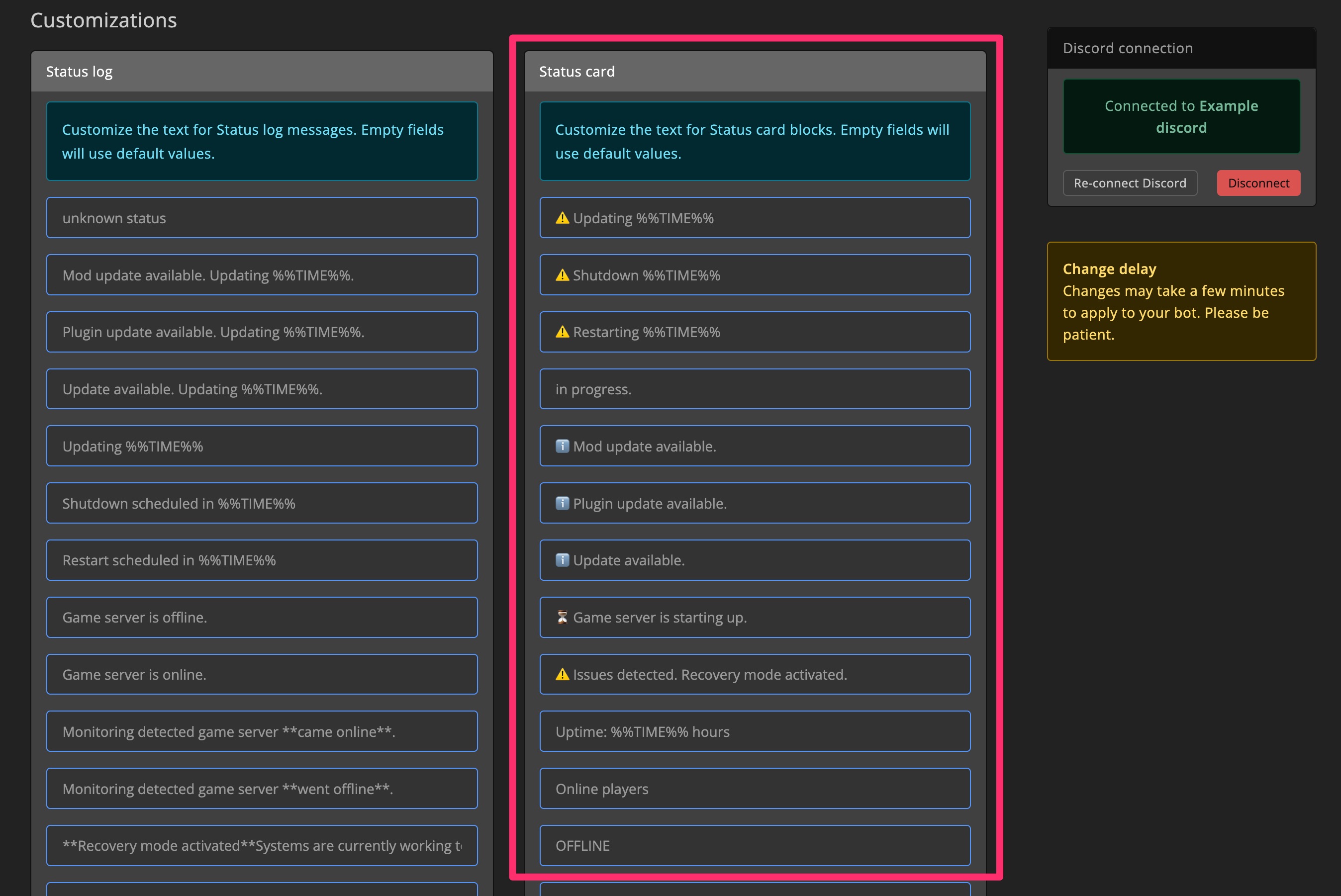
Customize status card
You can customize the Discord status card on the Discord settings page. Empty fields will use the default text.
Set up the bot
Connect bot to your dashboard
To get started, you need to connect the bot to your Discord server.
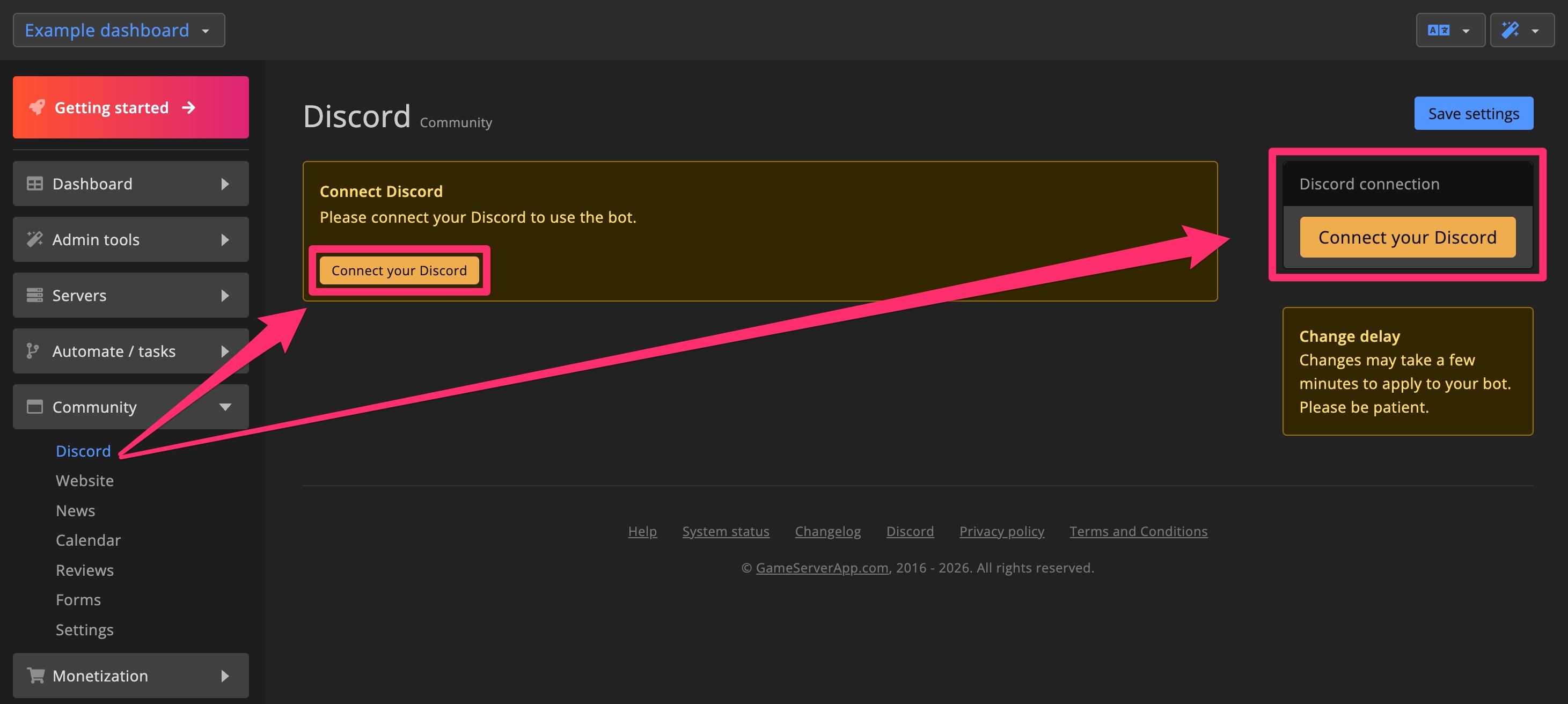
1. Connect Discord
Go to the Discord page and click Connect your Discord.
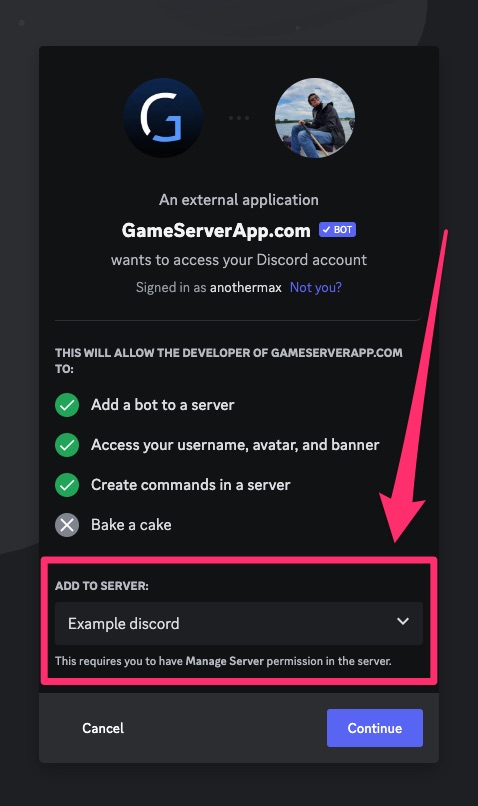
2. Select Discord server
Choose the Discord server where the bot should be installed and click Continue.
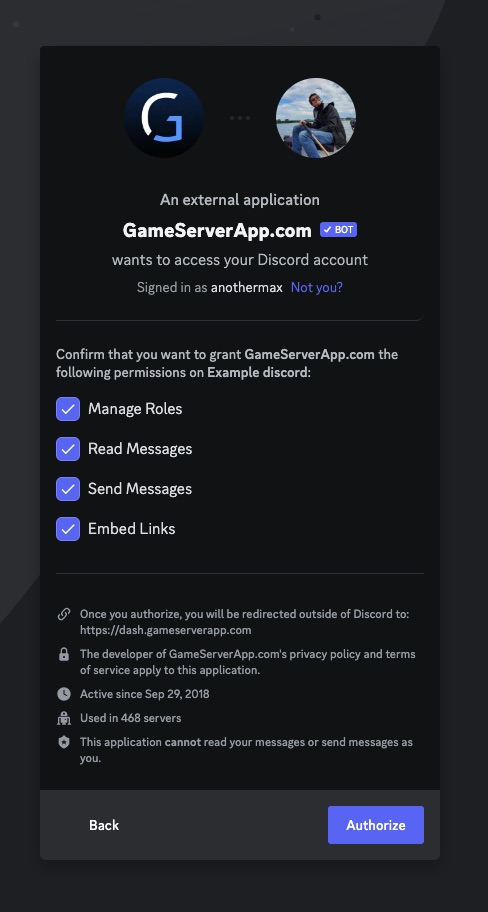
3. Confirm permissions
Keep all requested permissions enabled, the bot needs them to function properly. Click Authorize.
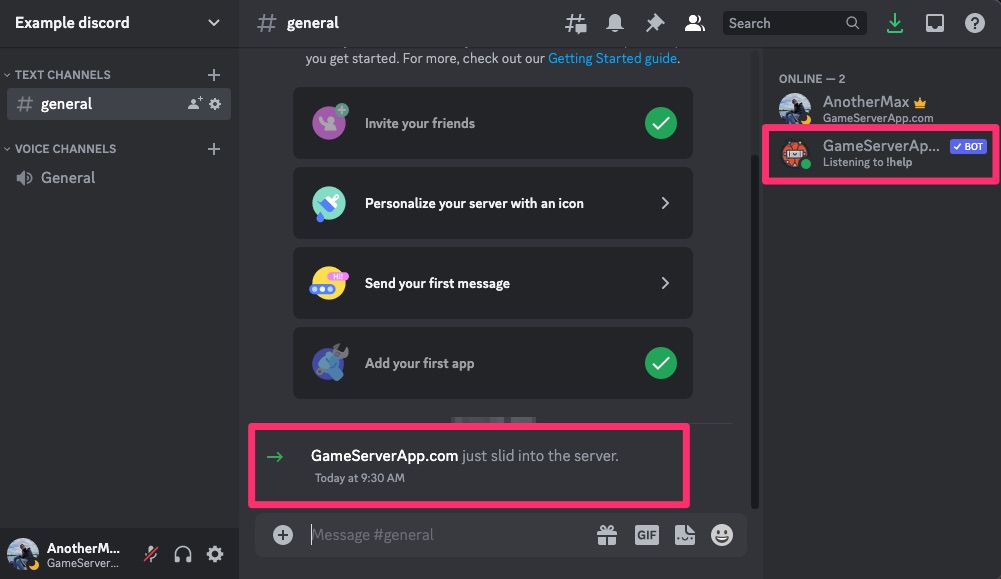
4. Done!
Group log setup
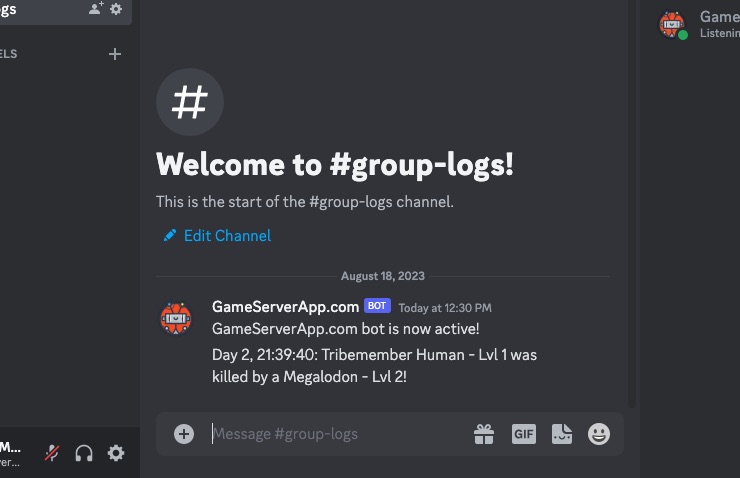
Allow players to view group logs in a private Discord server to stay informed about in-game activity even when offline.
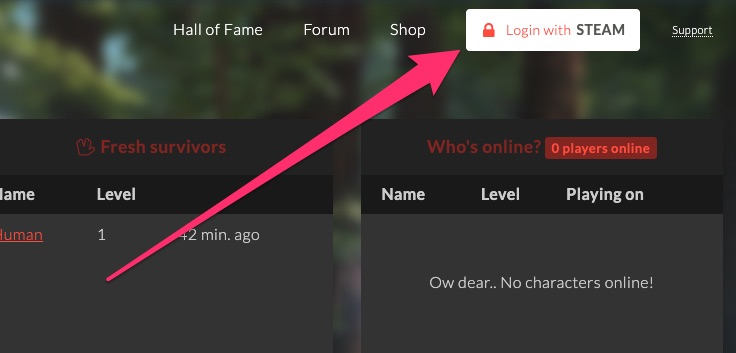
1. Log in on Community website
Group logs must be enabled by a group admin on the Community site.
Go to Group settings.
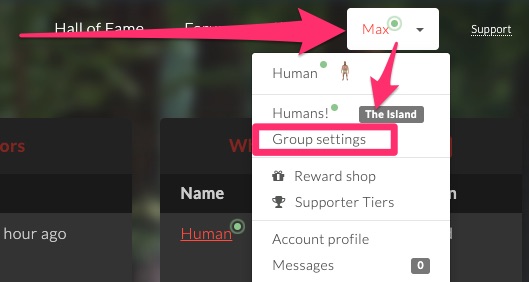
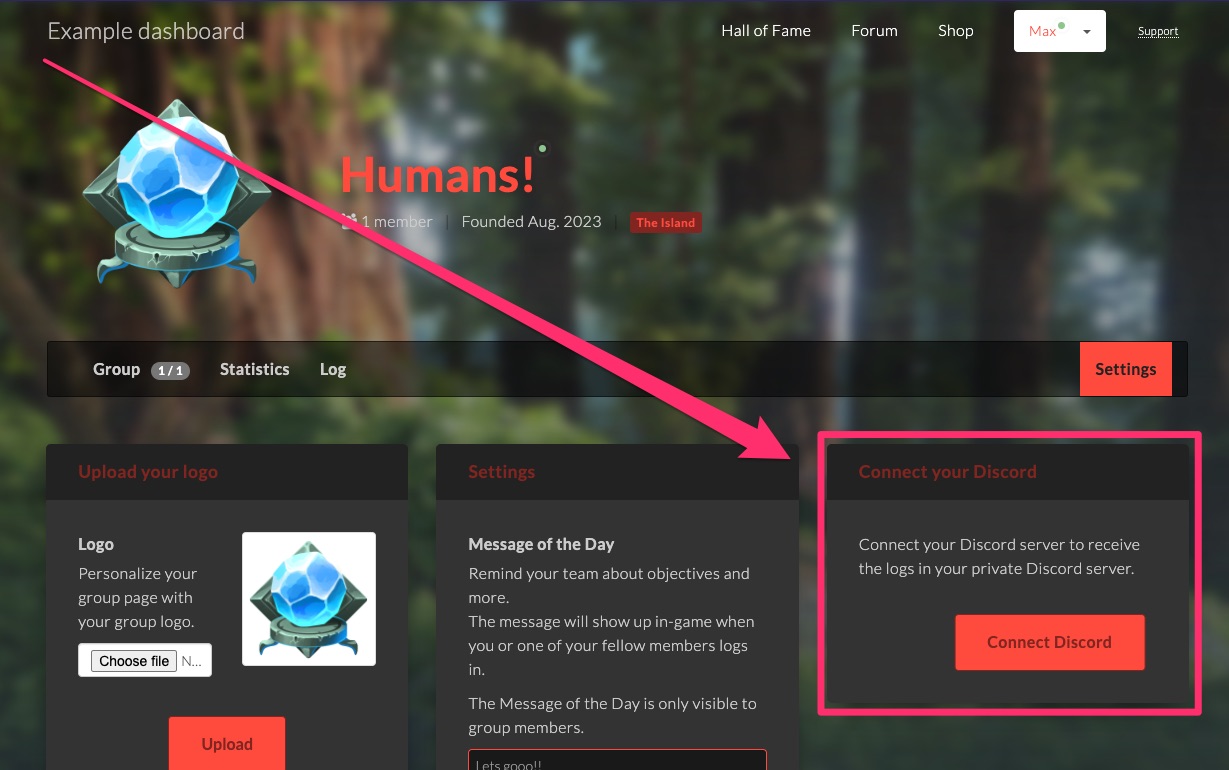
2. Connect group Discord
On the settings page, click Connect Discord to invite the bot to your group's private server.
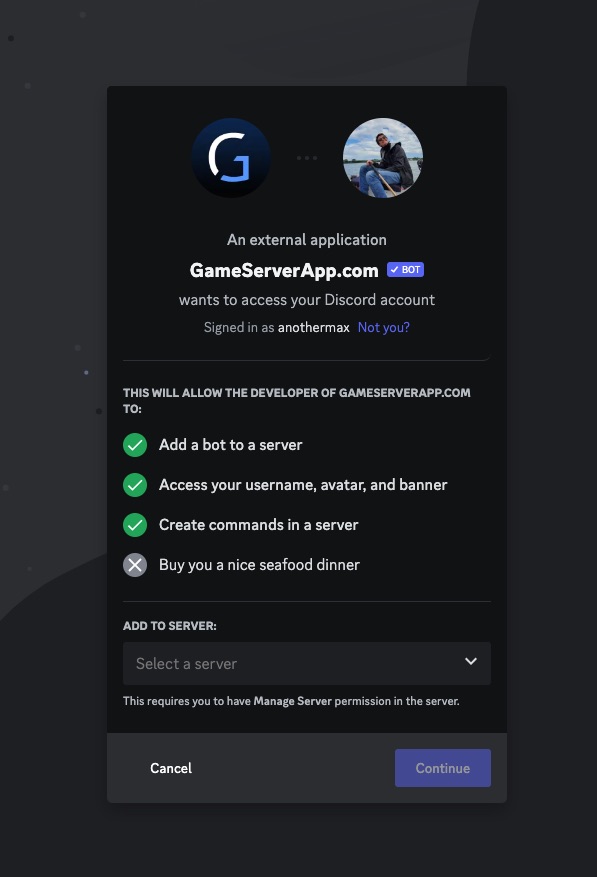
Select the server where you want group logs to be posted.
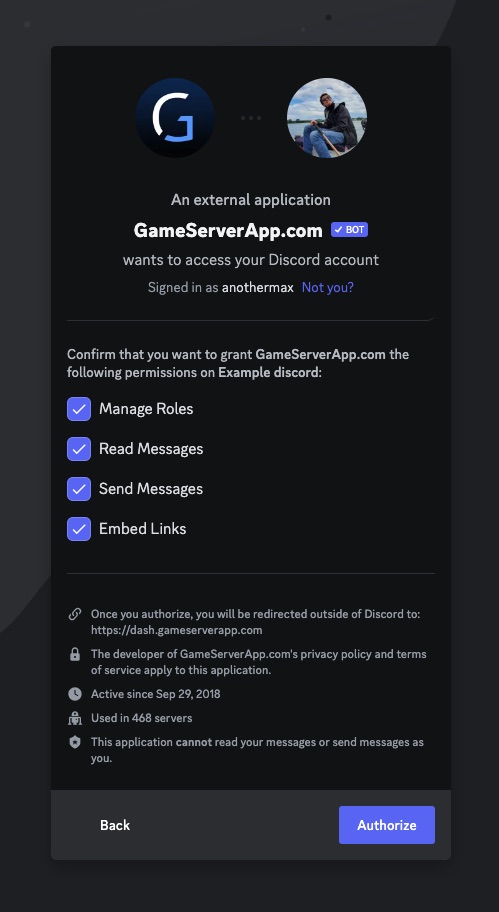
Keep all listed permissions enabled, then click Authorize.
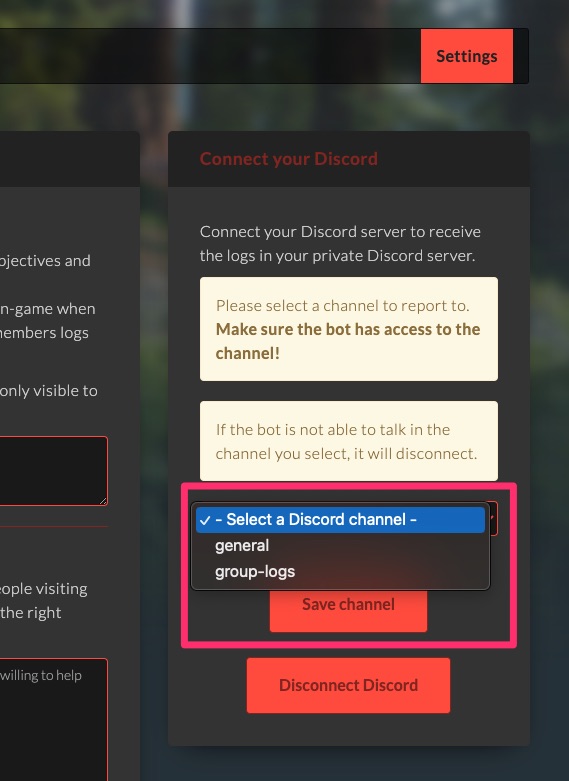
3. Select Discord channel
Choose the channel where group logs should be posted.
4. Done!
Group logs will now automatically appear in the selected Discord channel. It may take up to 10 minutes for new logs to show up.
Troubleshooting
The bot isn't posting messages
If you've just added the bot, please give it a few minutes.
Ensure the bot has the correct permissions to post in your channels. Check the bot's role settings and make sure it can send messages.